Loading...
Guide Stripe pas à pas

Comment créer un formulaire de devis WordPress avec paiements Stripe

Créez un formulaire de devis WordPress avec prix en direct, acompte Stripe, configuration assistée par IA et formulaire frontend plein ecran.

Mis à jour 2026-05-139 min de lecture
Stripe payment modal opened from a WordPress quote form
L’exemple final montre le formulaire de devis WordPress côté frontend.

Ce que couvre ce guide

  • Créer un formulaire de devis pour projet de site web avec l’assistant IA.
  • Configurer Stripe en mode test et facturer un acompte de 30 %.
  • Integrer le formulaire avec fullscreen="true" pour une expérience acheteur concentree.
  • Tester le package, le récapitulatif et la modale Stripe avant la mise en ligne.

Avant de commencer

  • A WordPress site with WP Cost Estimation & Payment Forms Builder installed.
  • A Stripe account with test keys available.
  • A clear offer, package, deposit rule, and post-payment follow-up.

Step 1

Generate the first quote form with the AI wizard

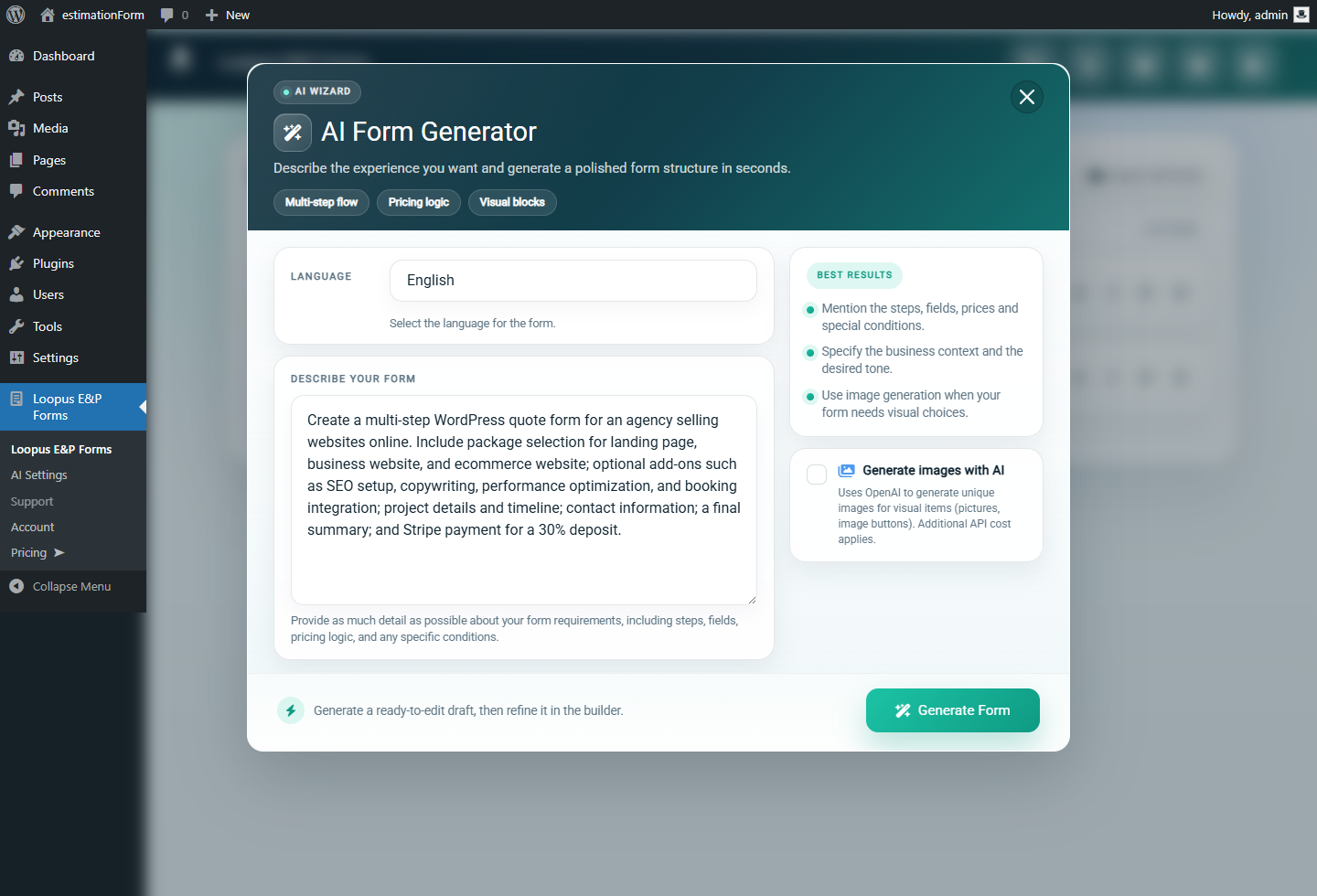
Start in the plugin forms screen and open the AI wizard. Describe the business model, the packages, the fields you need, and the payment intent. For this example, the prompt asks for a website project quote form that sells online website packages.

The goal is not to publish the AI result blindly. Use it to get a structured first draft faster: package selection, optional services, contact fields, a final summary, and a payment step.

  • Name the service clearly, for example website project quote or web design package.
  • Ask for a multi-step flow so pricing feels guided instead of crowded.
  • Mention that Stripe should be used for a deposit, not for collecting card data in custom fields.
AI wizard prompt for creating a WordPress quote form with Stripe payments
The AI wizard prompt defines the quote form structure before the form is generated.

Step 2

Review the generated form structure

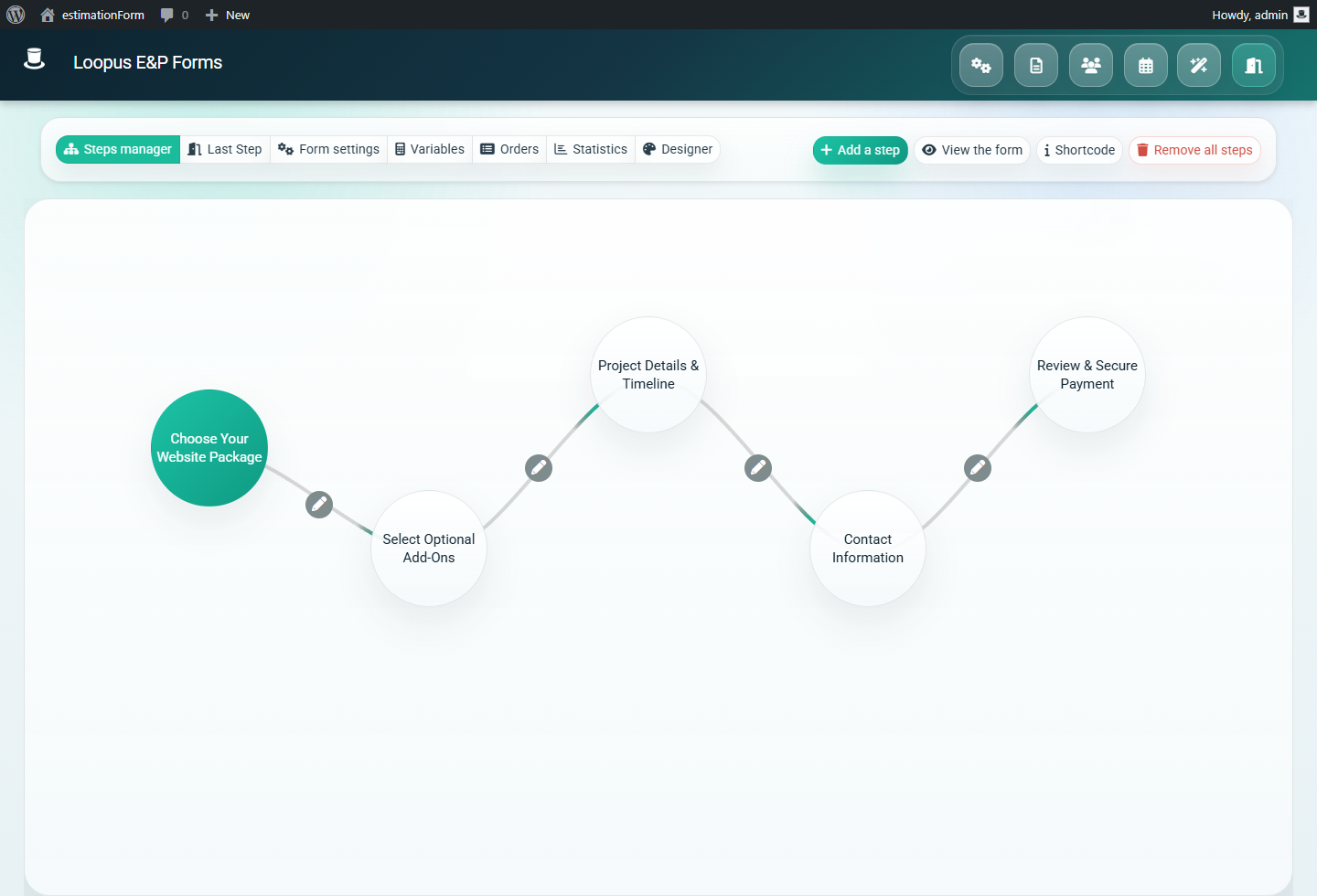
After generation, review the builder before touching payment settings. The first pass should already contain the main steps of the buyer journey: package choice, project details, options, contact details, and checkout.

Rename labels, remove unnecessary questions, and make the form match one clear offer. A Stripe quote form converts better when the visitor understands exactly what they are reserving or paying for.

  • Keep the first step simple: one primary service or package choice.
  • Move optional add-ons after the base package.
  • Place the payment step after the visitor has seen the calculated total.
Generated quote form opened in the WordPress form builder
The generated form appears in the builder with its initial steps and fields ready to edit.

Step 3

Confirm the form is saved and easy to find

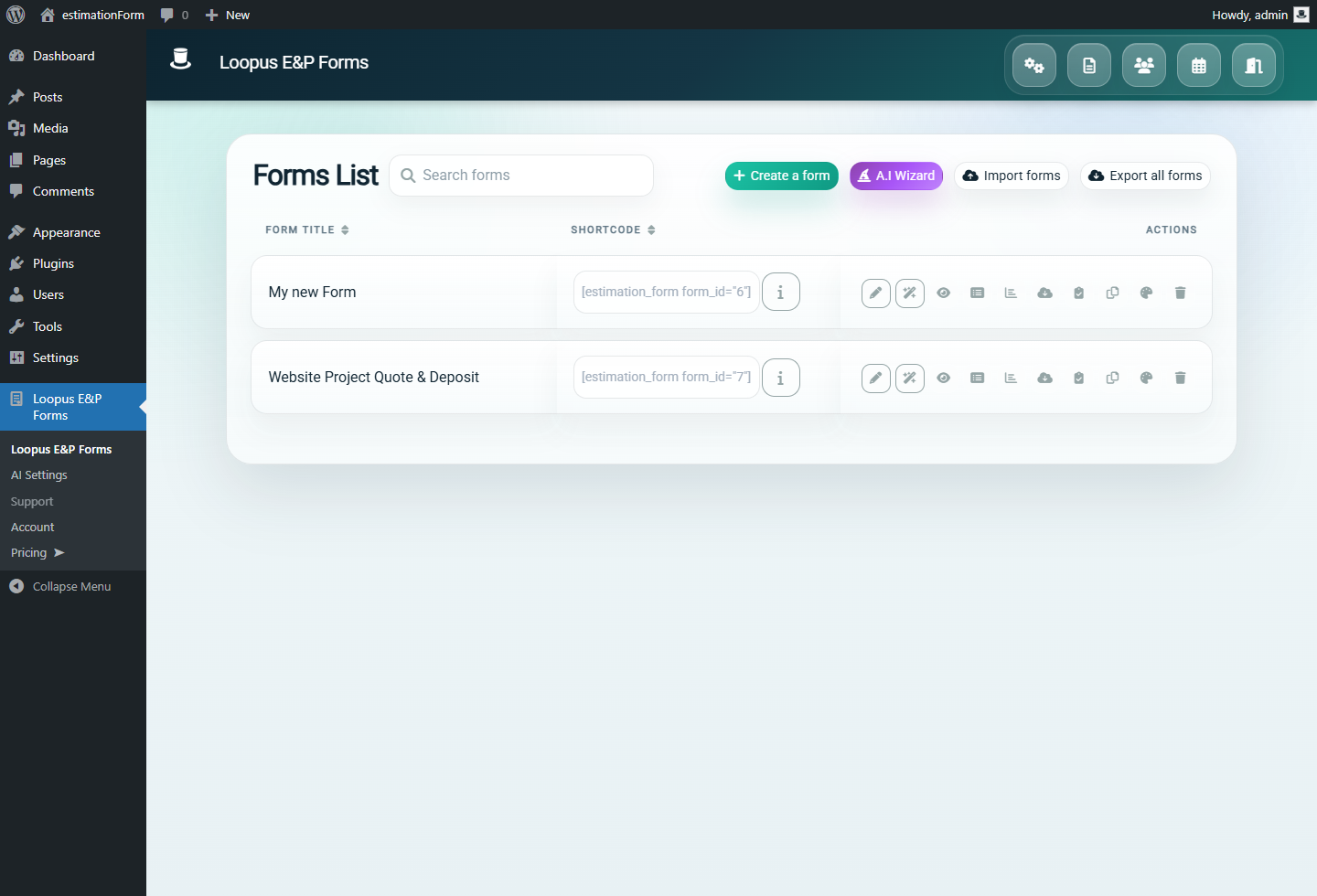
Return to the forms list and confirm that the new form is saved with a recognizable name. This matters when the site has multiple quote forms, demos, or client-specific calculators.

For the article example, the form is named Website Project Quote & Deposit so the payment purpose remains clear in the admin.

  • Use a descriptive form name.
  • Keep one test form separate from production forms.
  • Open the form from the list before configuring payment settings.
WordPress admin forms list showing the quote form
A clear form name makes the Stripe-enabled quote form easier to manage later.

Step 4

Check the steps before adding payment

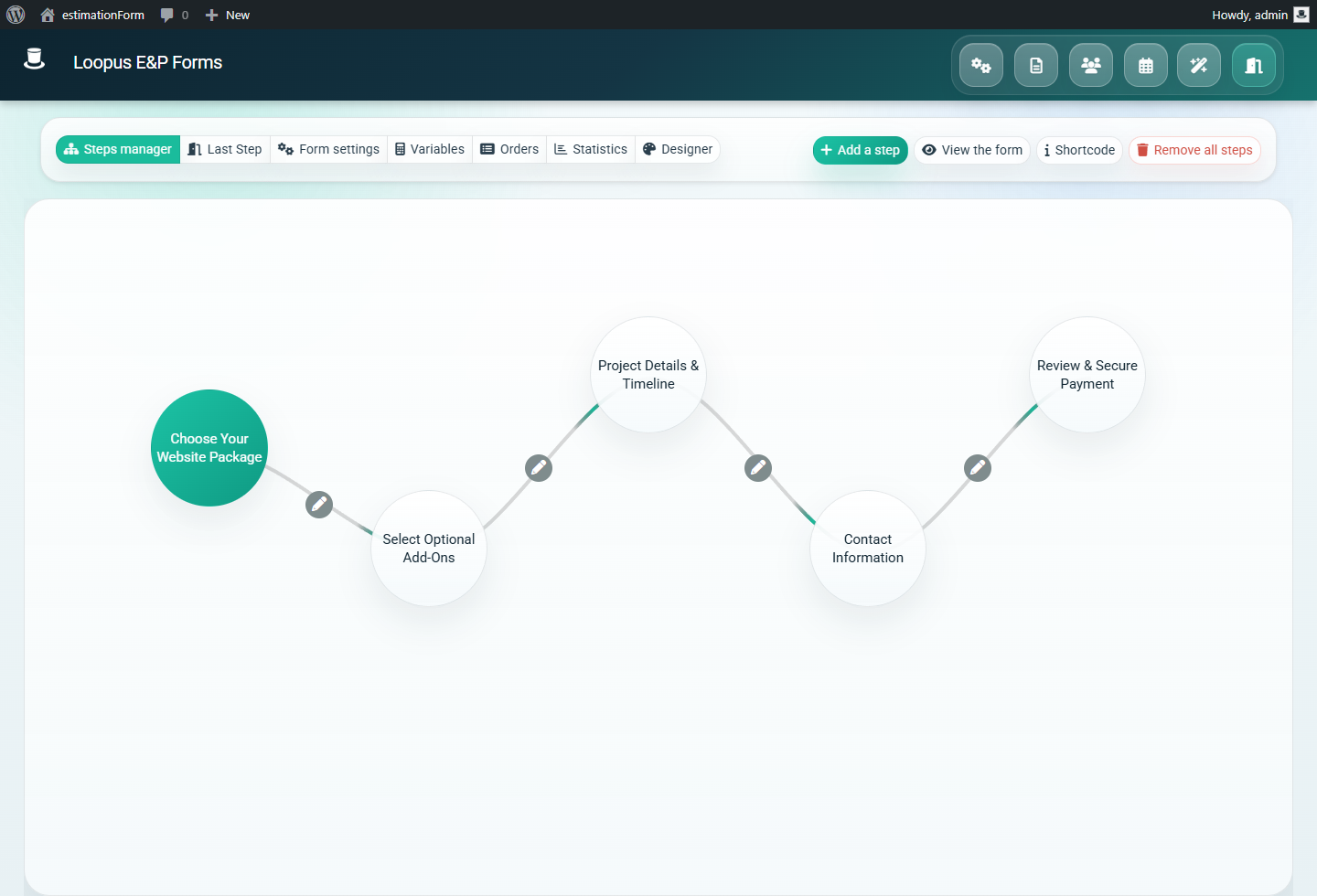
Open the builder again and confirm the customer journey is logical. A good quote-to-payment form should not ask for payment before the visitor understands the offer and total.

In this example, package and option choices come first, then the payment method step appears after the quote total is calculated, and the final summary appears before the Stripe modal opens.

  • Put pricing decisions before contact and payment fields.
  • Keep the final summary visible before payment.
  • Remove duplicate fields that would slow the buyer down.
WordPress quote form builder showing the form steps
The backend step list should match the order the customer will experience on the frontend.

Step 5

Configure Stripe in test mode

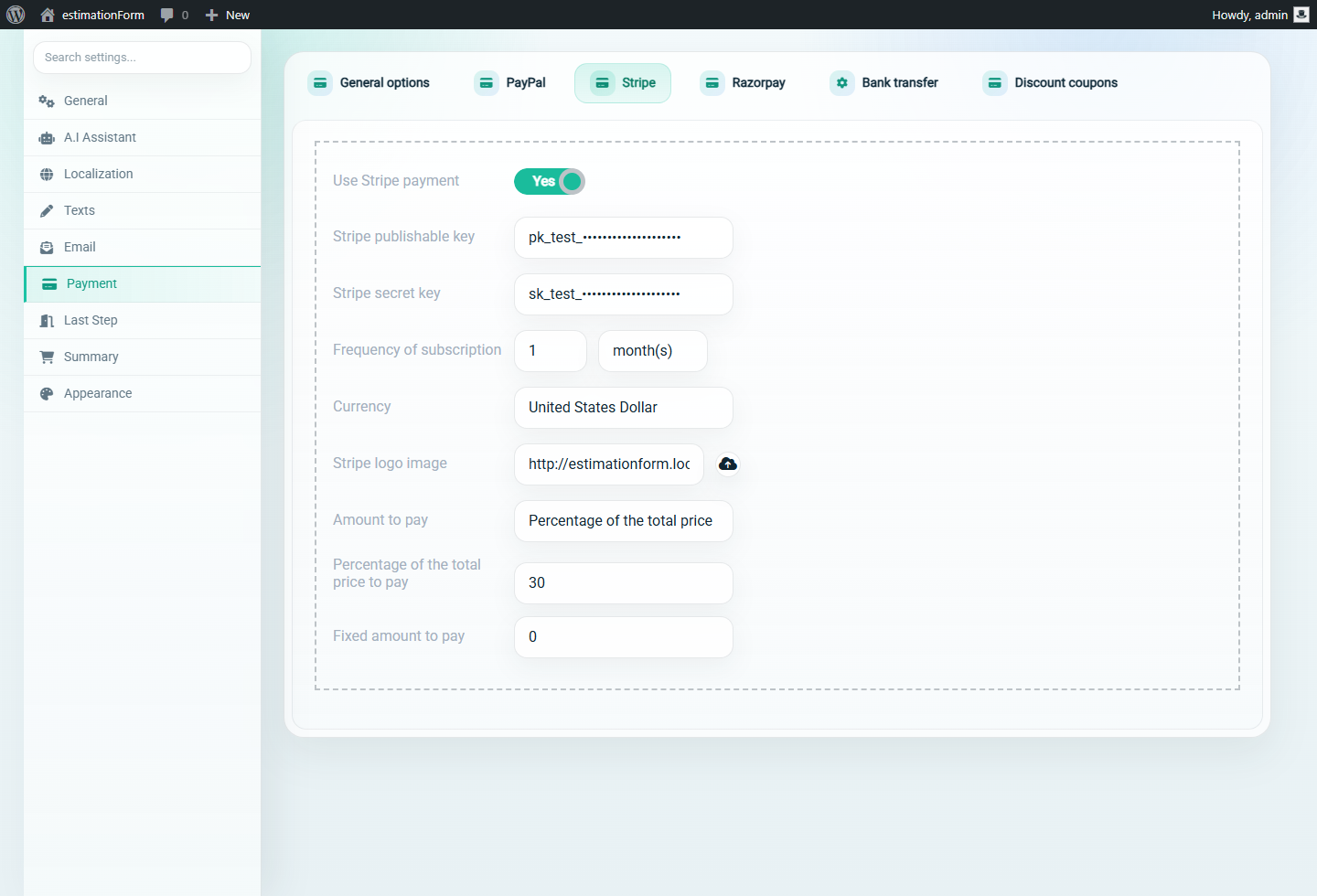
Open the form settings, then go to Payment and the Stripe tab. Enable Use Stripe payment, use sandbox or test mode first, paste the Stripe publishable and secret test keys, choose the currency, and set the Amount to pay option.

For this walkthrough, Amount to pay is set to Percentage of the total price with 30 in the percentage field. That is useful for deposits because the customer can reserve the project without paying the entire estimate upfront.

  • Use Stripe test keys while building.
  • Set Amount to pay to full amount, fixed amount, or percentage depending on your offer.
  • Use the right currency before testing the frontend payment step.
  • Mask keys in screenshots and documentation.
Stripe settings configured in the WordPress quote form backend
Stripe is enabled in test mode with a percentage deposit rule.

Step 6

Embed the form fullscreen on a WordPress page

Create or edit the WordPress page that will host the quote form. For a focused quote funnel, embed the form in fullscreen mode so the buyer experience is not visually competing with the surrounding theme.

Use the form shortcode and add the fullscreen attribute.

[estimation_form form_id="7" fullscreen="true"]
  • Use the correct form ID from the form list.
  • Keep one dedicated URL for the Stripe quote form.
  • Test the page while logged out or in a private browser session.

Step 7

Test the first frontend package step

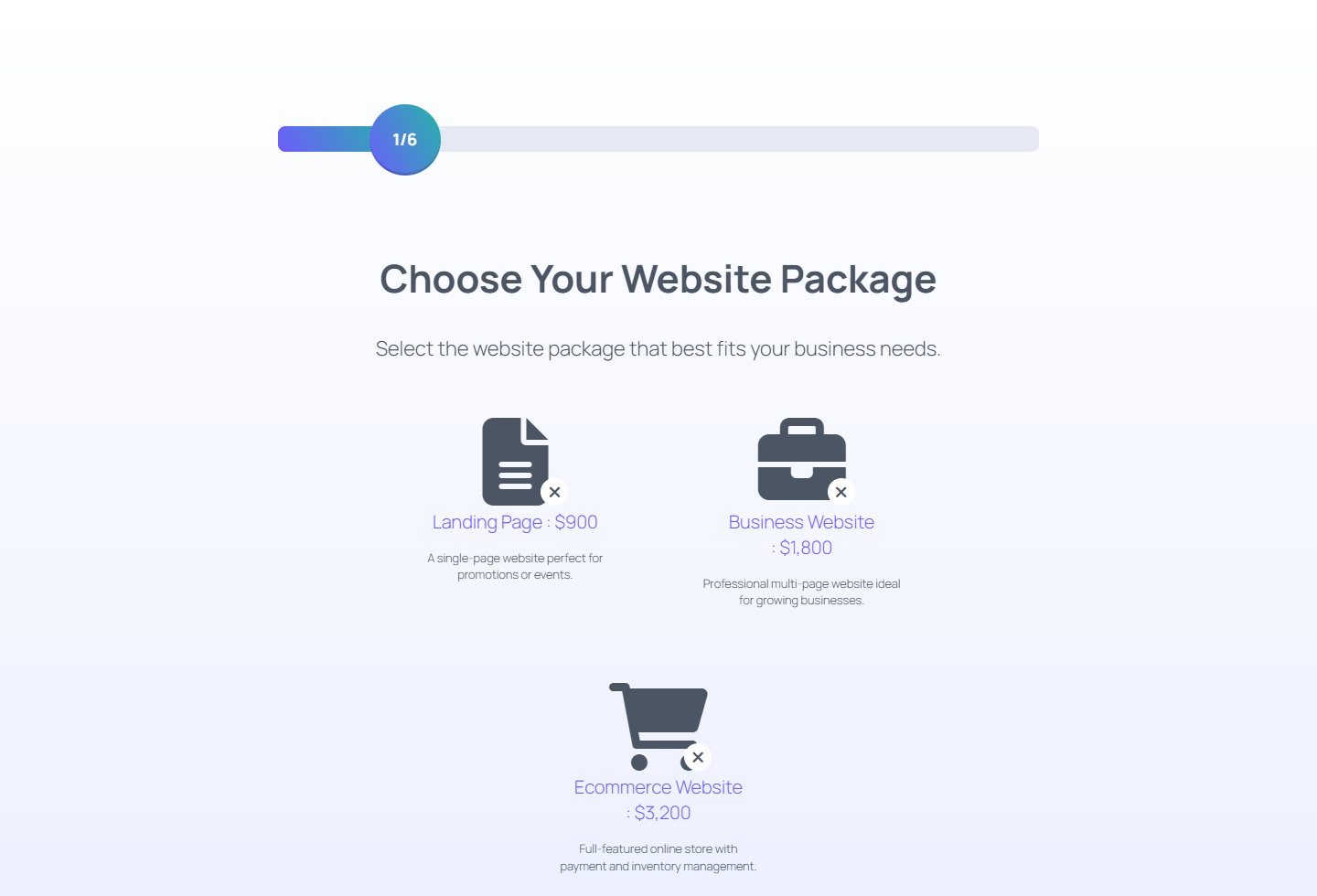
Open the public page and start as a normal visitor. The first screen should make the offer obvious and should not feel like a generic contact form.

For a website quote form, package names and prices should be visible before optional questions. That gives the visitor enough context to continue.

  • Confirm that the form loads correctly on the public URL.
  • Check that the total starts at the expected amount.
  • Make sure package copy is understandable without admin knowledge.
Frontend WordPress quote form package selection step
The first frontend step introduces the available website packages.

Step 8

Select a package and verify the live total

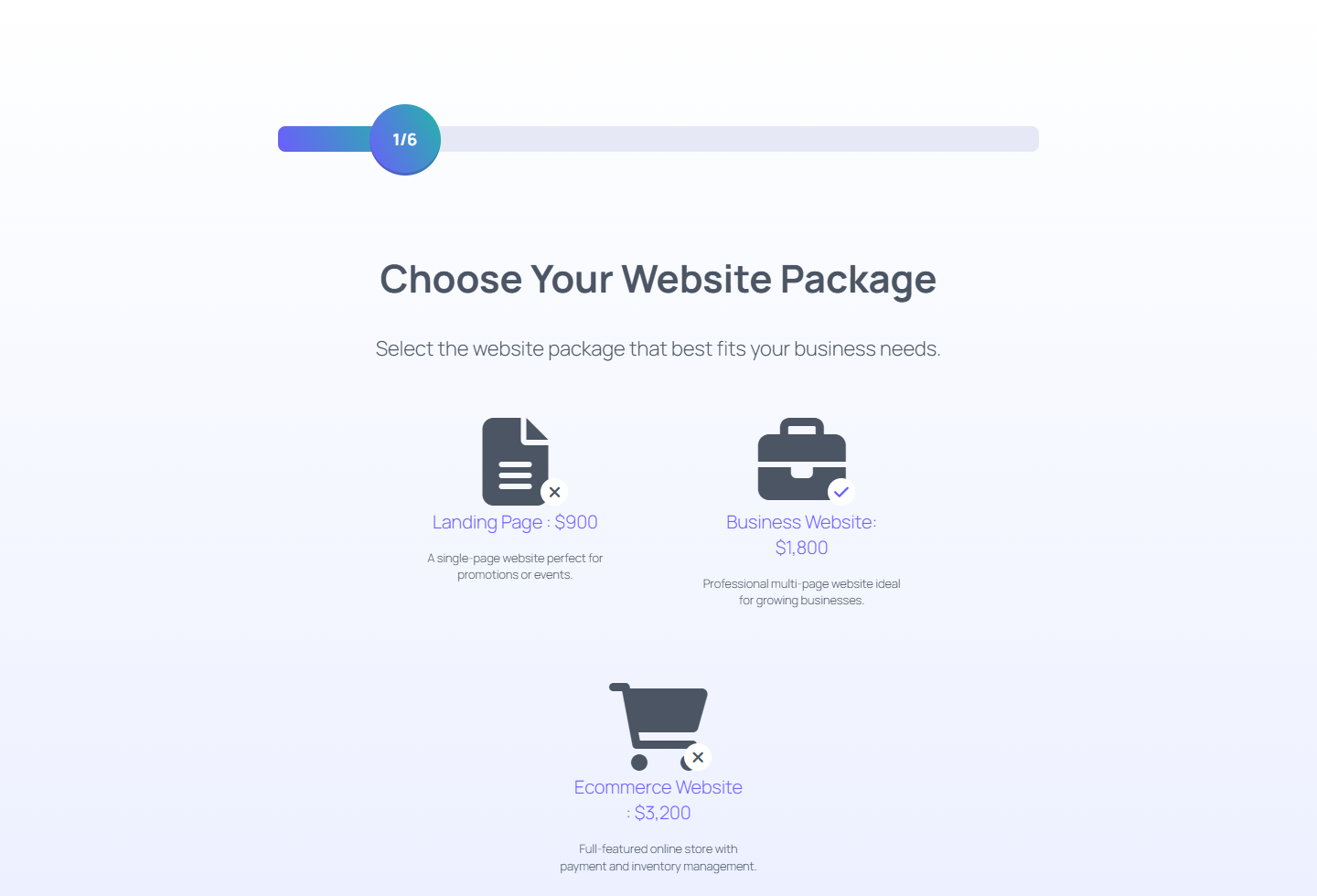
Choose a package and confirm that the live total updates immediately. This is the core advantage of a quote form over a normal contact form: the buyer sees the pricing consequence of each choice.

If the total does not match expectations, fix the form item prices before testing Stripe. Payment settings should be the last layer, not a workaround for incorrect quote logic.

  • Select a package.
  • Check the displayed total.
  • Review any add-ons or conditions that affect the price.
Selected package in a frontend WordPress quote form
Package selection should update the quote total before the visitor reaches payment.

Step 9

Reach the Stripe payment step

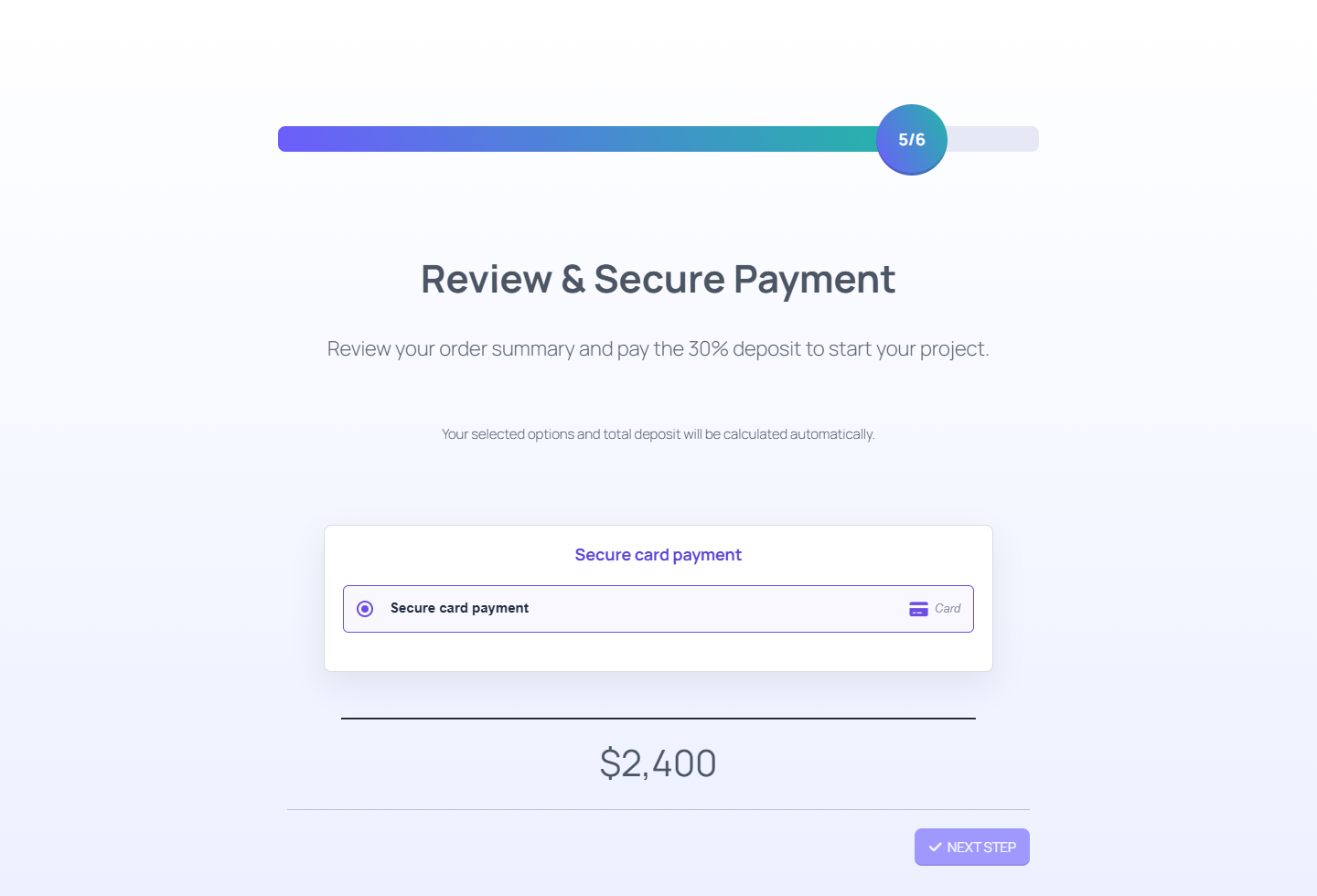
Continue to the payment method step and confirm that the secure card payment option appears after the quote is calculated. In this example, the form still displays the full quote total of $2,400 on the step.

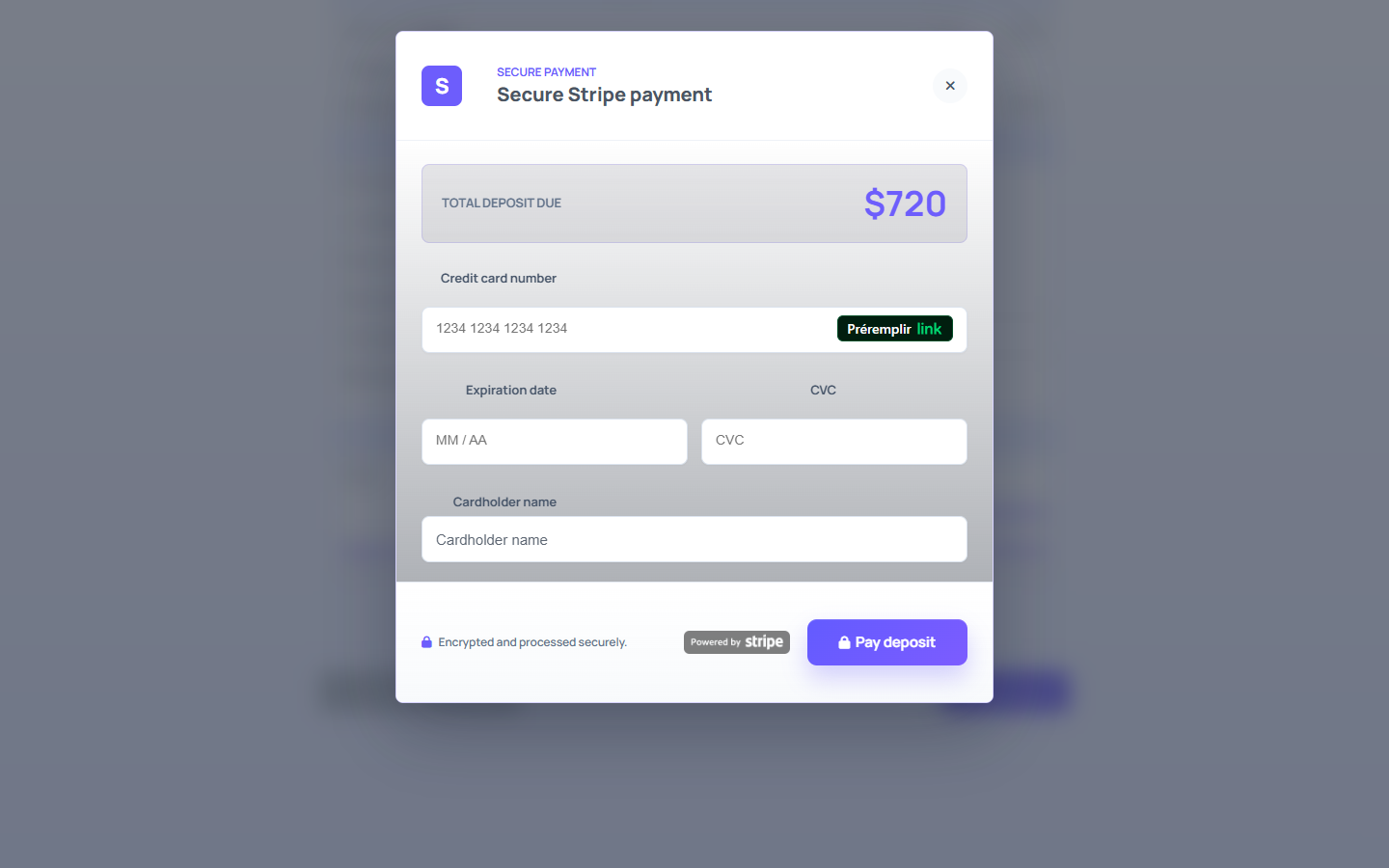
The 30% rule is applied when the Stripe modal opens, where the deposit due is $720. That separation is important: the form total remains the quote total, while Stripe receives the configured Amount to pay.

  • Confirm the payment label is clear.
  • Check that the quote total is still correct before the final summary.
  • Open the modal later to verify the actual Stripe amount.
Stripe payment step inside a WordPress quote form
The payment method step keeps the calculated quote visible; the configured Stripe amount is checked in the payment modal.

Step 10

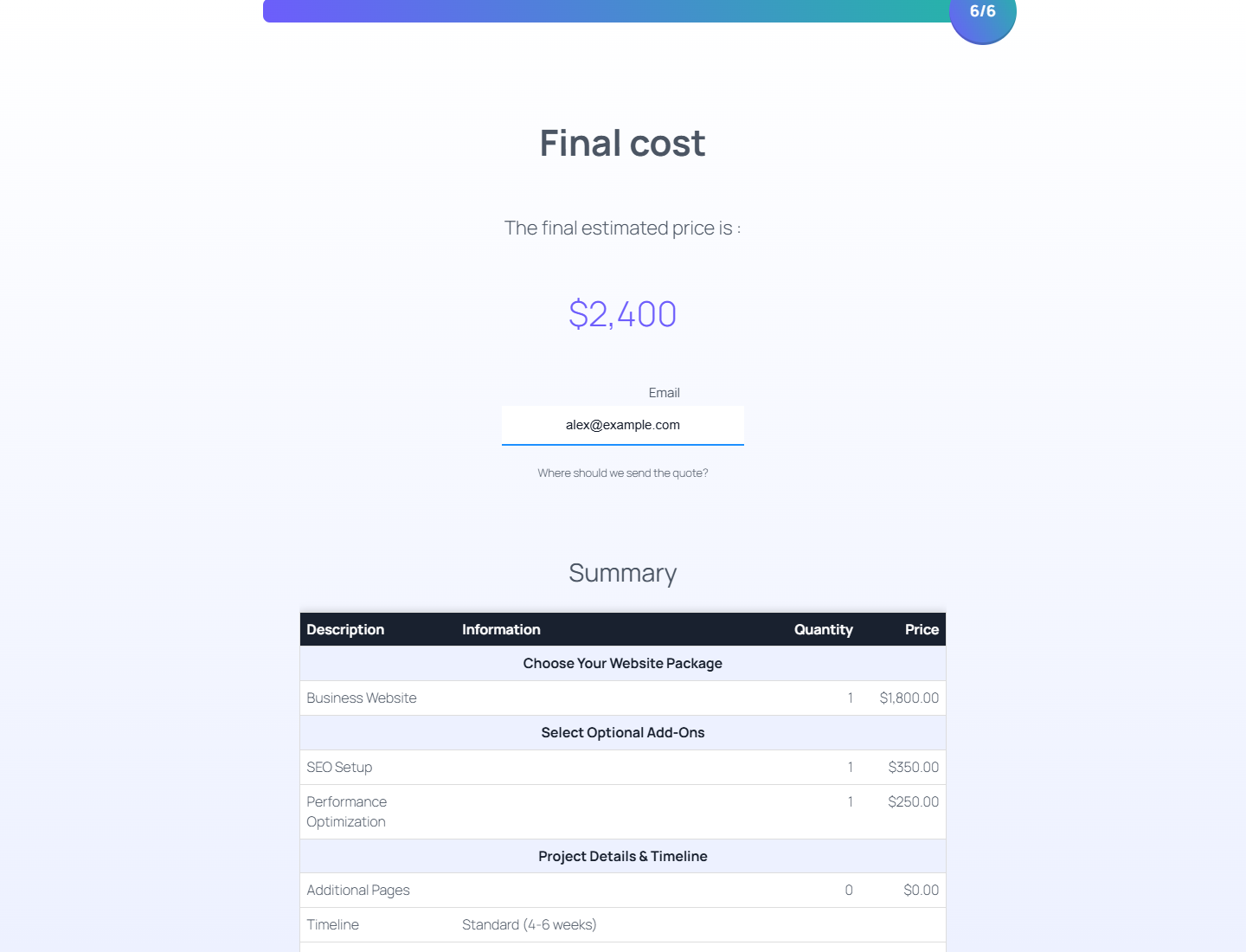
Review the final quote summary

Before opening the Stripe modal, review the final summary. A good summary helps the customer understand what they chose and gives the business a cleaner lead or order record.

Make sure required contact fields are filled and that the summary rows reflect the same choices and prices shown earlier in the form.

  • Check the customer email field.
  • Verify selected package and add-ons.
  • Confirm the final total.
  • Make sure the summary is readable on desktop and mobile.
Final quote summary before Stripe payment in WordPress
The final summary gives the buyer one last chance to review the calculated quote before payment.

Step 11

Open the Stripe modal and complete test payment checks

Click the Stripe payment button and confirm that the secure Stripe modal opens. In this demo, the modal shows a $720 deposit from the 30% rule. The card details should be handled by Stripe, not by ordinary form fields.

Use Stripe test cards only in test mode. After a successful internal test, review confirmation emails, order records, analytics events, and refund or deposit wording before switching the form to live Stripe keys.

  • Stripe modal opens from the form.
  • Payment amount matches the configured quote deposit.
  • The page remains HTTPS in production.
  • Confirmation and admin notifications are tested.
Stripe card payment modal opened from a WordPress quote form
The Stripe modal confirms that card collection is handled by Stripe in the secure checkout flow.

Checklist de lancement

  • Run the full form once with Stripe test mode enabled.
  • Check the payment amount against the calculated total.
  • Test required fields, mobile layout, and email notifications.
  • Publish clear deposit, cancellation, and refund wording near the payment step.
  • Replace test keys with live Stripe keys only after the quote workflow is validated.
FAQ du guide

Questions fréquentes

Can I take deposits from a WordPress quote form?

Yes. A Stripe-enabled quote form can collect a deposit when the form payment settings support a percentage or fixed payment amount.

Can I use Stripe with calculated prices?

Yes. The calculated total can be connected to the payment step, so the Stripe amount follows the quote logic configured in the form.

Should I use Stripe test mode first?

Yes. Build and validate the form with Stripe test keys first. Switch to live keys only after the quote total, deposit amount, frontend flow, and notifications have been tested.

Can I embed the form fullscreen?

Yes. Use the shortcode attribute fullscreen="true" to display the quote form as a focused fullscreen experience.

Can I use PayPal or WooCommerce instead of Stripe?

Yes. Depending on your setup and plan, you can also build payment workflows with other integrations such as PayPal or WooCommerce.

Construisez le prochain parcours de devis

Utilisez les démos et la documentation pour adapter le même modele aux acomptes de réservation, packages de conseil, configurations produit et calculateurs de devis client.