Loading...
WooCommerce-Anleitung fuer individuelle Produkte

So bauen Sie einen WooCommerce-Preisrechner fuer individuelle Produkte

Erstellen Sie einen WooCommerce-Preisrechner fuer individuelle Produkte mit Live-Preisen, Produktoptionen und einer Dynamic-Image-Vorschau, die sich nach Farbe und Logo aendert.

Aktualisiert 2026-05-148 Min. Lesezeit
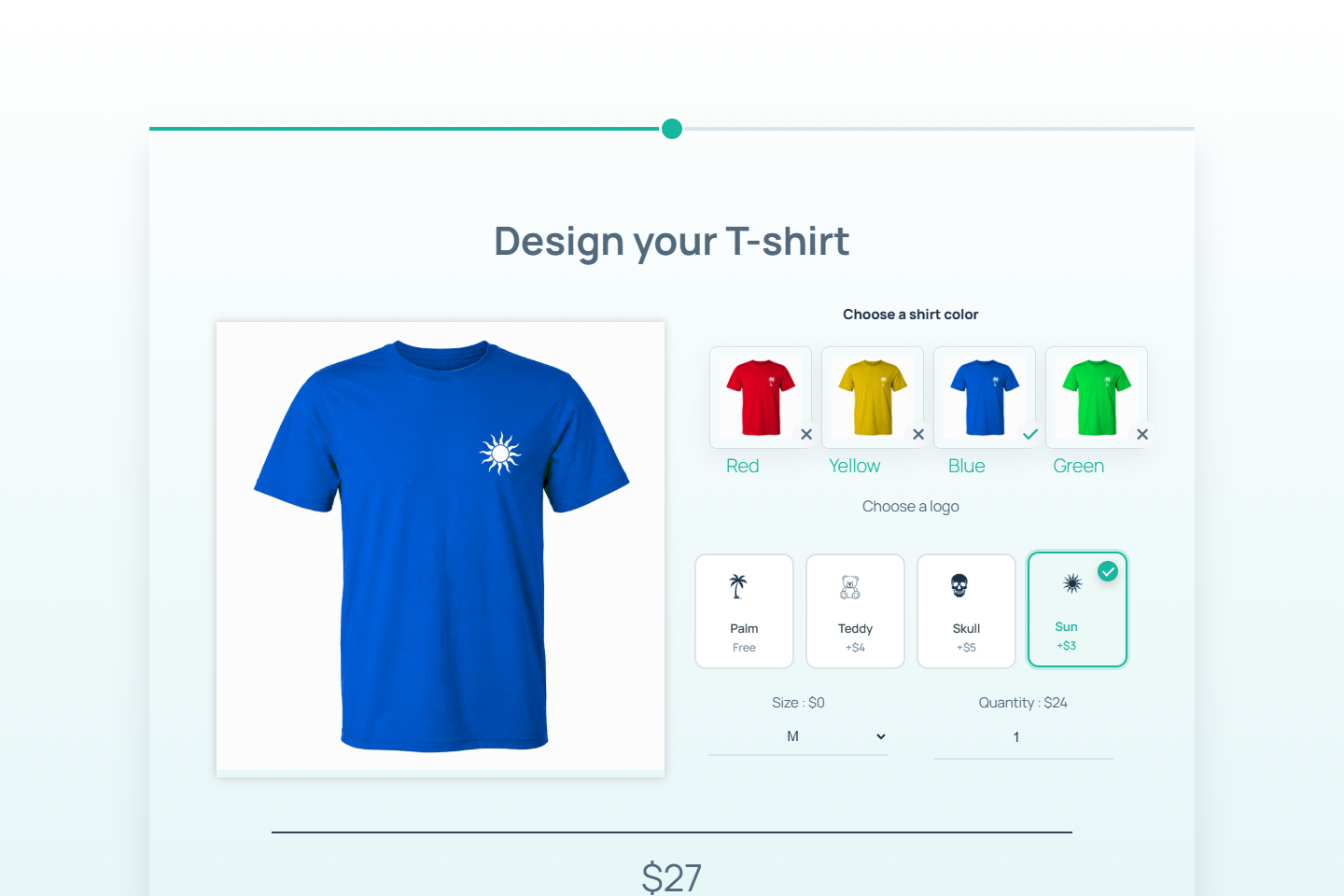
WooCommerce T-shirt price calculator with Dynamic Image preview
The finished WooCommerce calculator updates the T-shirt preview from the selected color and logo while keeping the live total visible.

Was diese Anleitung behandelt

  • Ein WooCommerce-Produkt fuer den individuellen Artikel erstellen.
  • Einen klaren Konfigurationsschritt mit Dynamic Image links und nativen Optionszeilen rechts bauen.
  • Jede T-Shirt-Variante in der Dynamic-Image-Ebenentabelle hinzufuegen.
  • Die Ebenensichtbarkeit im visuellen Bedingungs-Builder festlegen.
  • Groessen- und Mengenpreise ergaenzen, damit die Live-Summe das konfigurierte Produkt widerspiegelt.

Bevor Sie beginnen

  • A WordPress site with WooCommerce installed and active.
  • WP Cost Estimation & Payment Forms Builder installed.
  • Product variation images for each visual combination.
  • A test page or product page where you can verify the calculator frontend.

Step 1

Create the WooCommerce demo product

Start with a simple WooCommerce product that represents the custom item being configured. In the demo, the product is named Custom Logo T-Shirt Demo and uses a $24 base price.

The calculator can then collect the product options, calculate the configured price, and pass a readable summary into the WooCommerce workflow.

  • Use a clear product name.
  • Set the base price before adding option upcharges.
  • Use a product image that matches the default calculator preview.

Step 2

Build one visual product configuration step

Keep the main product choices in the same step so the shopper can see the effect of each selection immediately. In the form style settings, apply the Clean cards theme preset, then add a native two-column row: Dynamic Image on the left and product options on the right.

The Dynamic Image item uses its main image field for the default product preview. The variation images are managed later from that same item, in its Image layers table.

This works especially well for custom products because the buyer does not have to move between steps just to compare colors, logos, and pricing.

  • Put the Dynamic Image component in the left column.
  • Place color Image items, the logo Icon Picker, size, and quantity controls in the right column.
  • Use nested native rows to display choices in clean grids.
  • Use the built-in theme preset and theme controls instead of writing custom CSS.
  • Keep labels short so the step remains scannable.
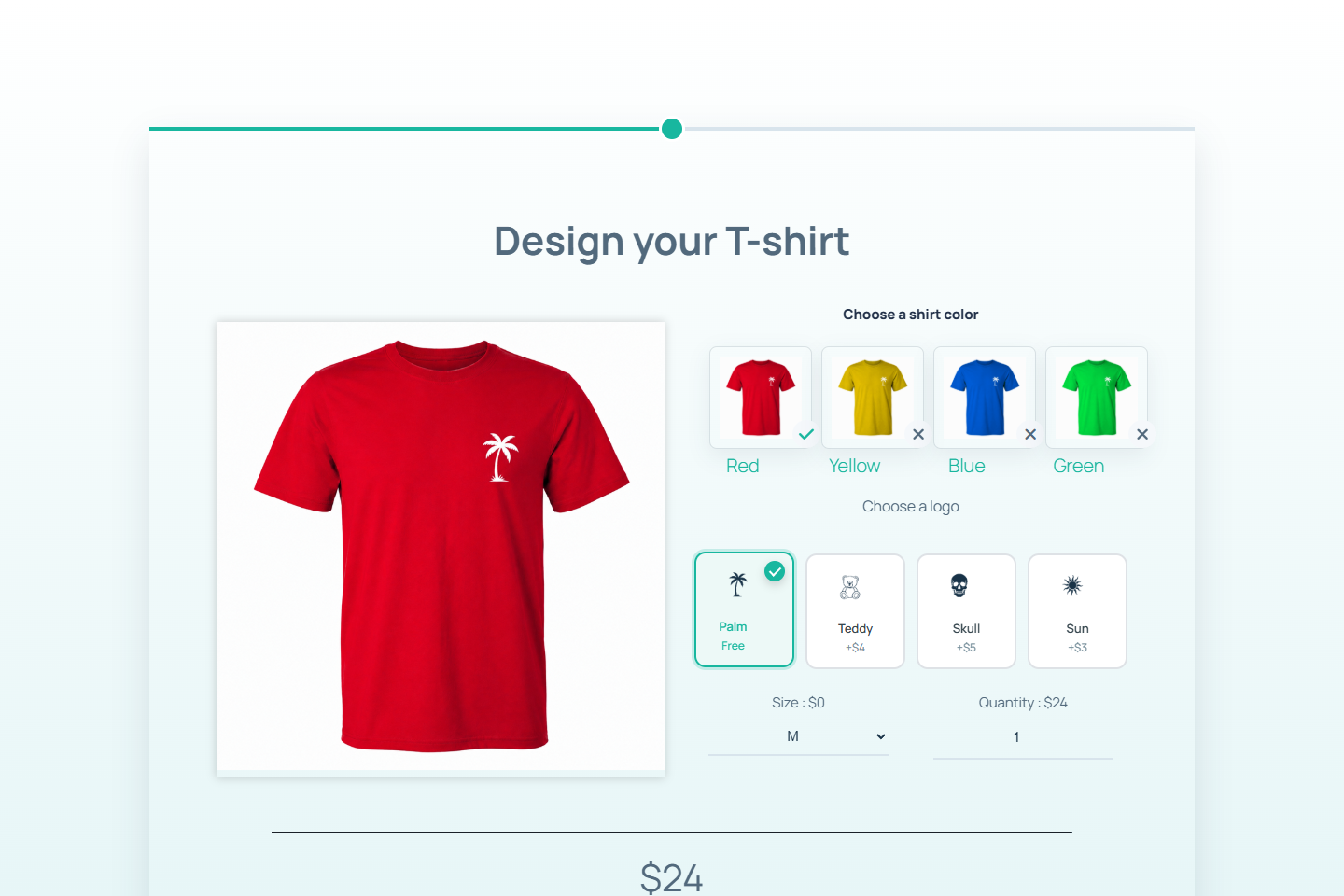
T-shirt WooCommerce price calculator with dynamic image and options
The first step keeps the product preview, visual options, pricing controls, and live total in one polished configurator.

Step 3

Add color images and a logo Icon Picker

Create one option group for colors and one Icon Picker for logos. The demo colors are red, yellow, blue, and green. The logo choices are palm, teddy bear, skull, and sun.

Use radio-style behavior for each group so the shopper chooses exactly one color and exactly one logo. This prevents impossible combinations and makes the image logic easier to maintain.

  • Use Image components for each color choice.
  • Put the four color Image items inside a native 4-column row.
  • Use one Icon Picker component for the logo choice.
  • Set the Icon Picker to radio selection mode.
  • Use high-contrast logo icon images for Palm, Teddy, Skull, and Sun.
  • Keep the four logo icons in a 4-column Icon Picker grid.
  • Color group: red, yellow, blue, green.
  • Logo options: palm, teddy bear, skull, sun.
  • Set one default color and one default logo.
  • Add unique logo upgrade prices where needed: Teddy +$4, Skull +$5, Sun +$3.

Step 4

Add the T-shirt images as Dynamic Image layers

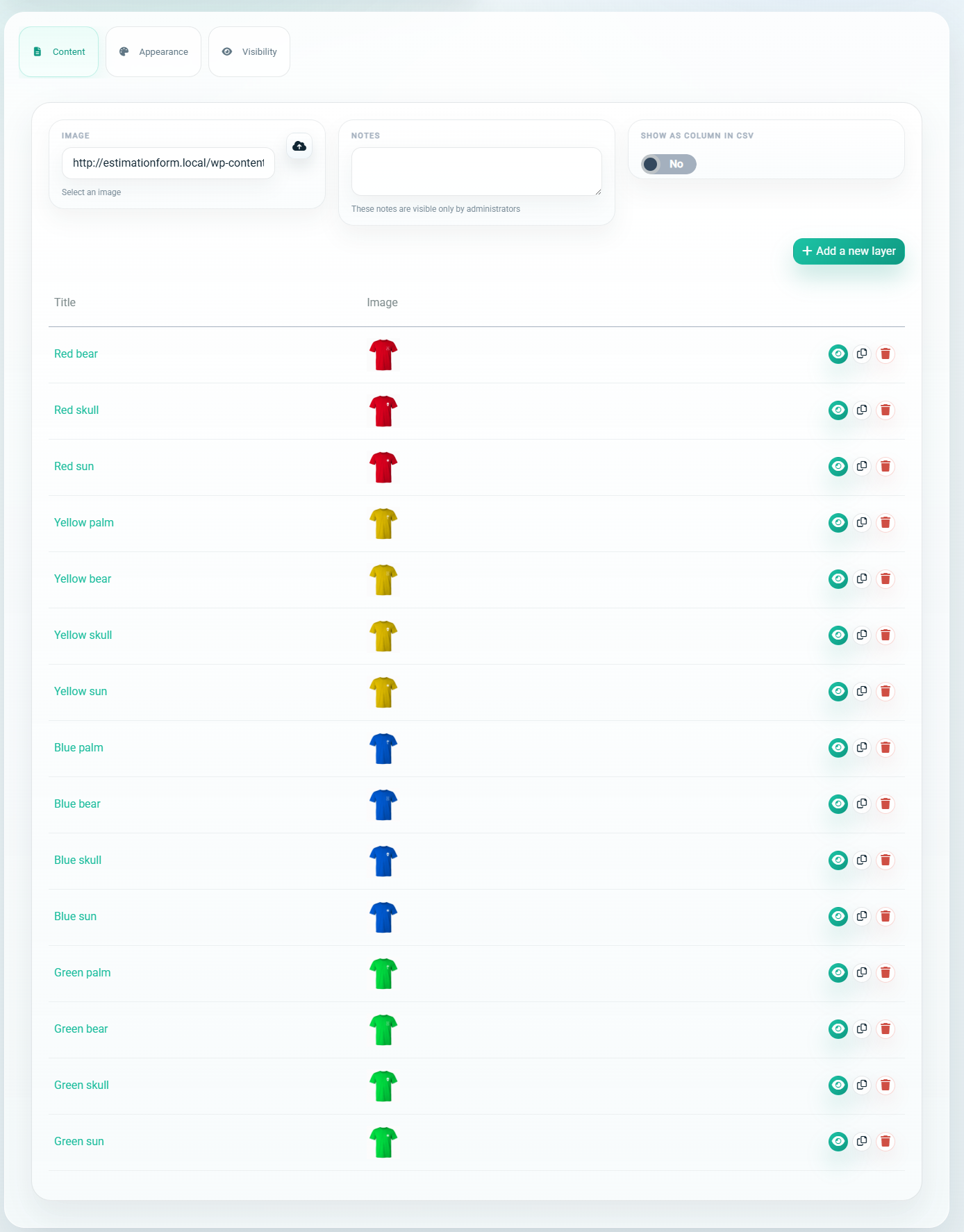
Open the Dynamic Image item from the visual builder. Keep the default red palm T-shirt in the main Image field, then scroll to the Image layers table inside the same item editor.

This table is where the extra variation images are managed. Each row is one image that can appear above the base image when its visibility conditions are true.

For the T-shirt demo, red_palm.png is the base image. The remaining 15 combinations are added as layer rows, such as Blue sun, Green skull, or Yellow teddy.

  • Use the Dynamic Image item editor, not hidden fields or manual IDs.
  • Click Add a new layer for every non-default variation image.
  • Name each layer after the visible result, for example Blue sun.
  • Select the matching image file in the Image column.
  • Use the eye icon on the layer row to open its visibility rules.
Dynamic Image Image layers table in the plugin backend
The Image layers table belongs to the Dynamic Image item. Each row stores one variation image and the eye icon opens that layer's visibility conditions.

Step 5

Set the layer conditions in the visual builder

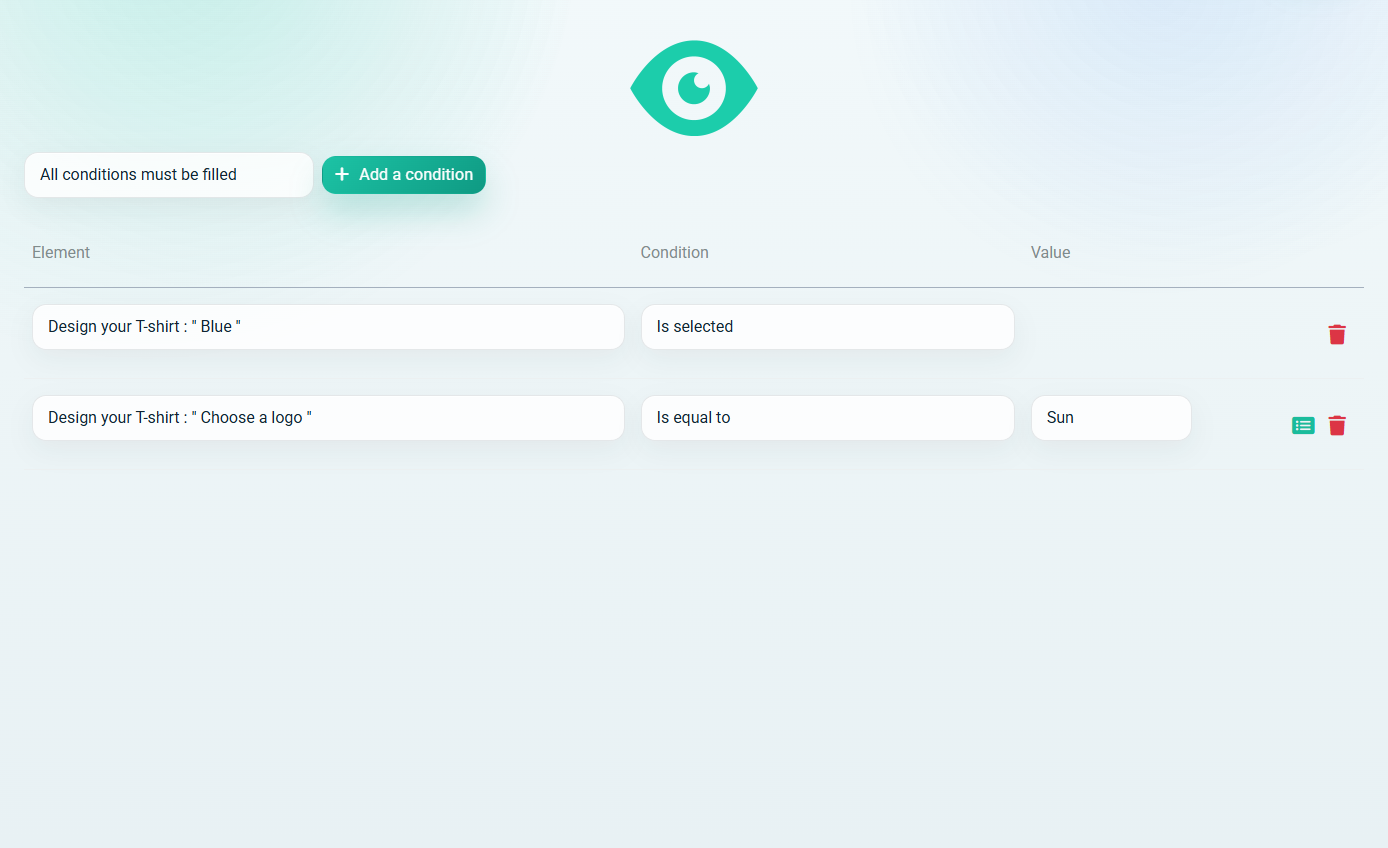
After clicking the eye icon on a layer row, the plugin opens the layer visibility condition builder. This is the screen that controls when that specific image appears.

For blue_sun.png, leave the operator set to All conditions must be filled. Then add two rows: the Blue color Image item must be selected, and the logo Icon Picker must be equal to Sun.

The logo price is not used to decide which image appears. The Dynamic Image layer checks the selected Icon Picker label, so clear labels such as Palm, Teddy, Skull, and Sun matter.

  • First condition row: choose the Blue color Image item, then Is selected.
  • Second condition row: choose the logo Icon Picker, then Is equal to, then Sun.
  • Use All conditions must be filled when the image depends on both color and logo.
  • Repeat the same pattern for the other variation images.
  • Save the condition screen, then save the Dynamic Image item and the form.
Dynamic Image layer visibility conditions in the backend
The visibility condition builder is visual: select the form element, choose the condition, and choose the Icon Picker label when the condition needs a logo value.

Step 6

Add size and quantity pricing

After the visual choices, add size and quantity controls in a native two-column row. In the demo, M is included, L adds $2, XL adds $4, and quantity uses the $24 product price.

This keeps the total transparent: visual choices can add logo upcharges, size can add production cost, and quantity controls how many units are ordered.

  • Use a select field for size upcharges.
  • Use a number field for quantity.
  • Confirm the default total starts at the expected base price.
  • Check that each option updates the live total.
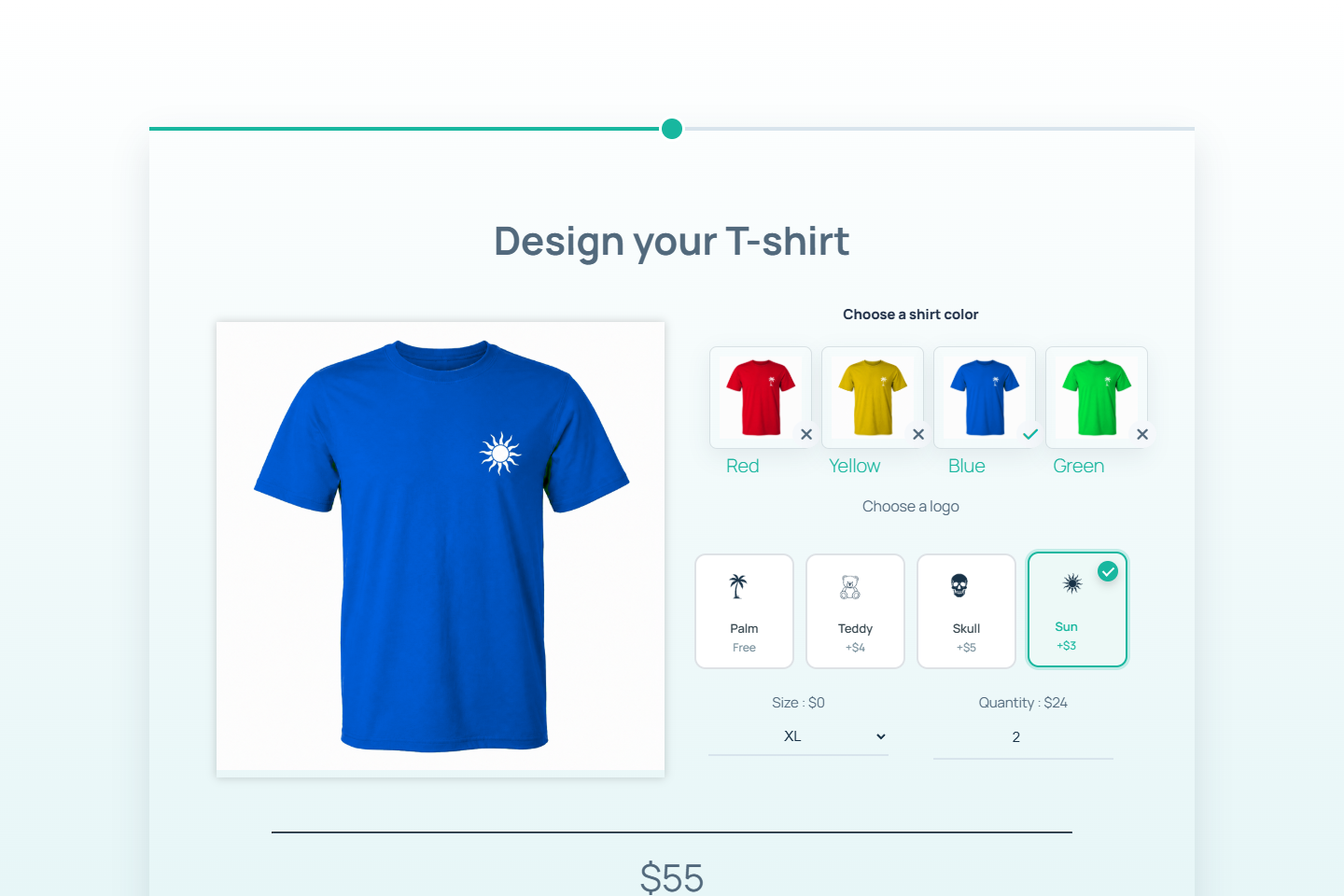
WooCommerce price calculator options and live total
Native rows group visual choices, size, quantity, and price updates while the live total stays visible.

Step 7

Embed and test the WooCommerce calculator

Embed the calculator on a dedicated page or inside the WooCommerce product content. The shortcode below is the demo embed used for this guide.

If the form must write the selected options into WooCommerce order details, open the form settings and enable the WooCommerce summary options you need before publishing.

Test the frontend as a shopper: switch color and logo combinations, check the image, change size, update quantity, and confirm the summary matches the configured product.

[estimation_form form_id="9" fullscreen="true"]
  • Verify image changes before testing checkout.
  • Confirm the calculated total after each option change.
  • Review the WooCommerce product and form summary together.
  • For cart or order usage, enable the WooCommerce form options instead of relying on the shortcode alone.
  • Run a mobile check before publishing.

Launch-Checkliste

  • Confirm every color and logo combination has a matching image.
  • Open a Dynamic Image layer with the eye icon and confirm the visual condition rows use the correct color option and Icon Picker label.
  • Verify default selections show the correct default product image.
  • Test size upcharges, logo upcharges, and quantity totals.
  • Enable WooCommerce summary settings when the configured options need to appear in cart or order data.
  • Open the WooCommerce product page and confirm the calculator is visible to shoppers.
WooCommerce calculator FAQ

Haeufige Fragen

Can WooCommerce handle custom product price calculators?

Yes. With a dedicated calculator form, WooCommerce can receive clearer custom product selections, calculated totals, and summary data than a basic product option field would provide.

What is the Dynamic Image component used for?

Dynamic Image displays the correct product preview when selected form options match its layer conditions, such as a specific T-shirt color and logo combination.

Do I need one image for every product variation?

For the cleanest visual result, yes. The demo uses one final image per color and logo combination so the preview always matches the selected product.

Can the same workflow work for products other than T-shirts?

Yes. The same pattern works for printed products, signage, packaging, engraved items, product bundles, and custom manufacturing options.

Can I put the calculator directly on a WooCommerce product page?

Yes. You can embed the form shortcode in a product page or a dedicated landing page, then test how the calculated options and summary fit your checkout workflow.

Build a visual WooCommerce product calculator

Use the same structure for printed apparel, engraved products, packaging, signage, rentals, bundles, or any custom WooCommerce product where options change both the image and the price.