Loading...
WooCommerce custom product guide

WooCommerce Price Calculator for Custom Products | Setup Guide

Connect the calculator item to a WooCommerce product, define whether the form calculates a unit price, then check the amount and quantity in the cart. The illustrated T-shirt setup below keeps the visual choices and Dynamic Image layers.

Bottom line

The inspected integration passes a custom unit price and a separate cart quantity. A correct form total does not by itself prove the cart line, taxes or checkout result.

Updated 2026-10-0510 min read
WooCommerce T-shirt price calculator with Dynamic Image preview
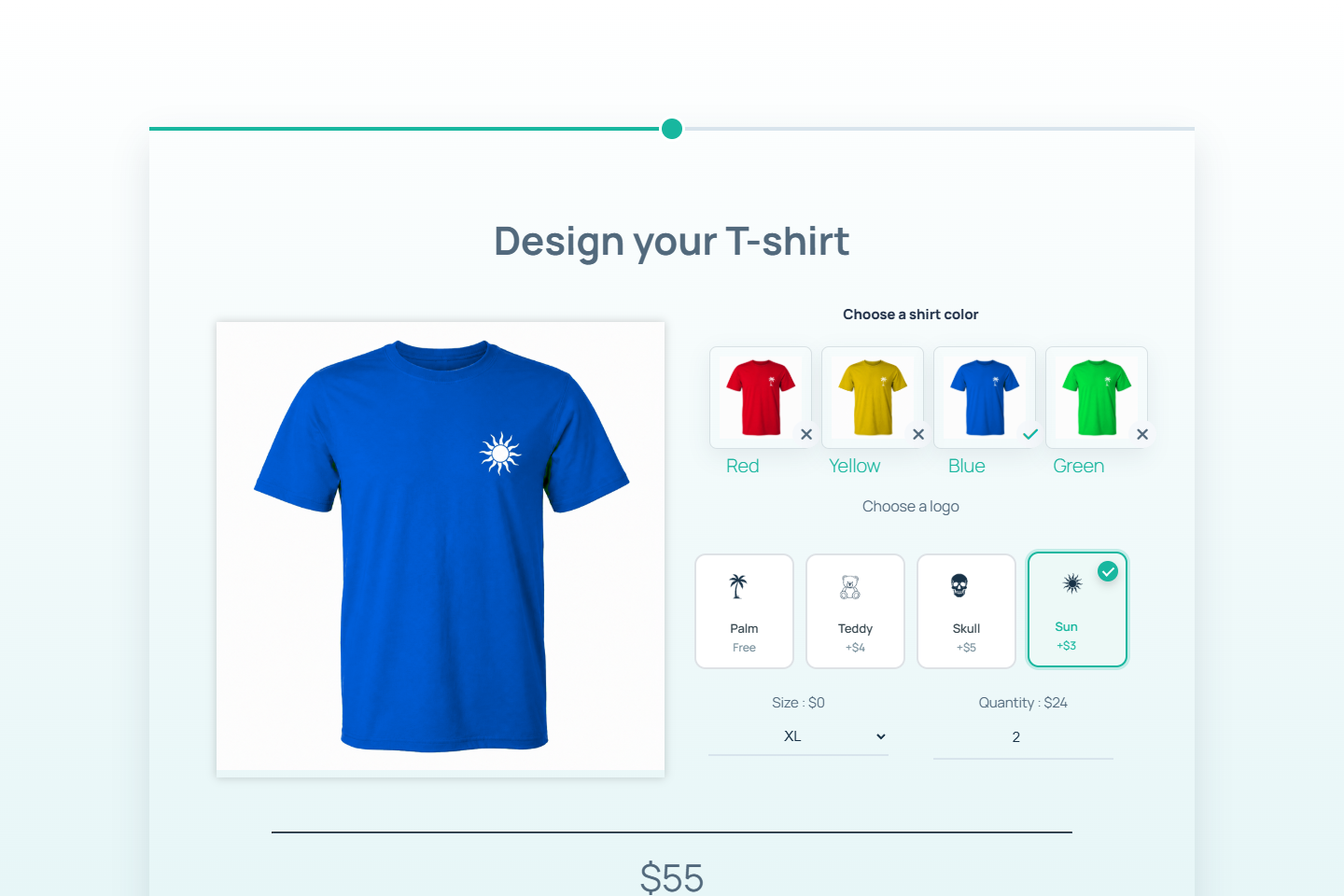
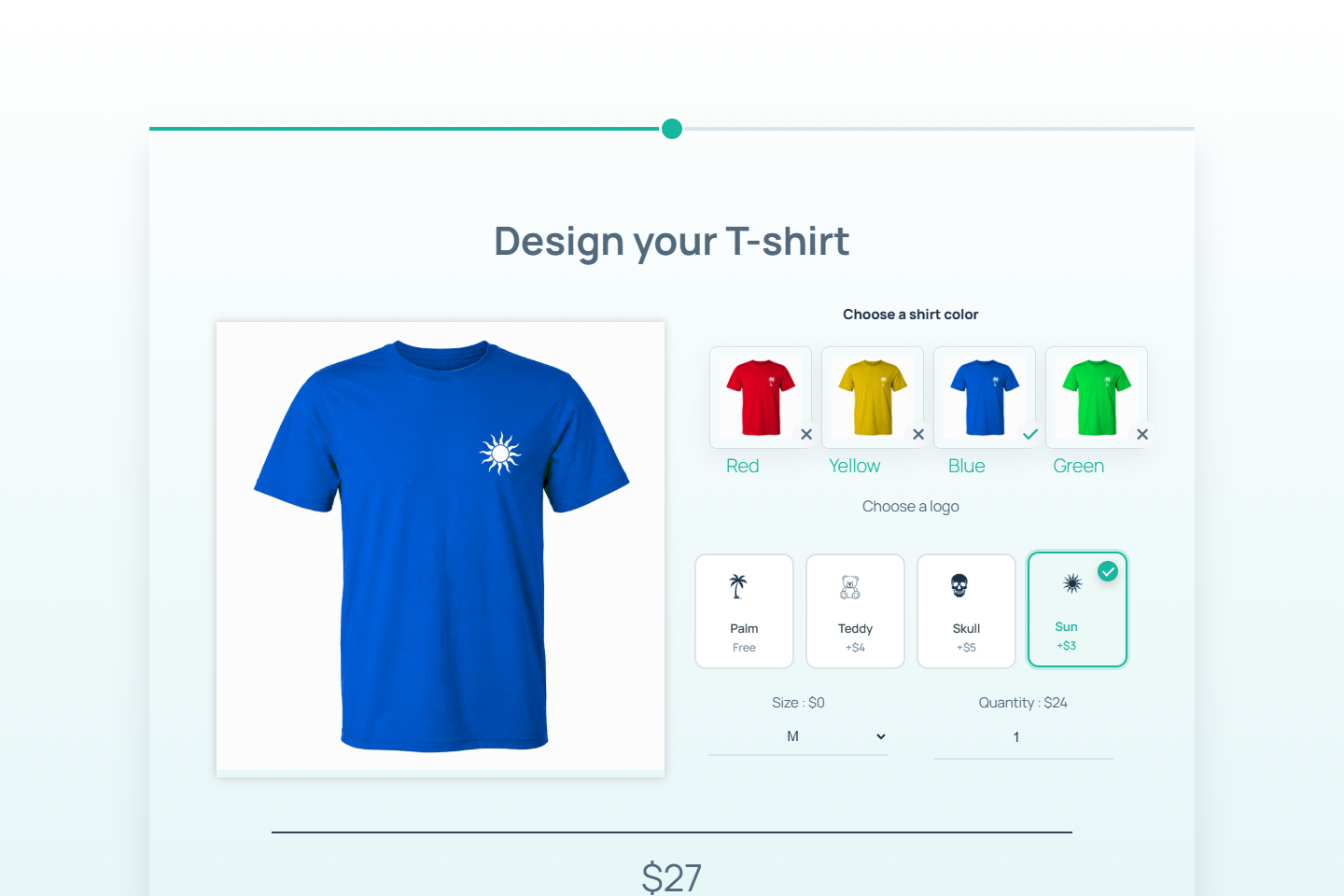
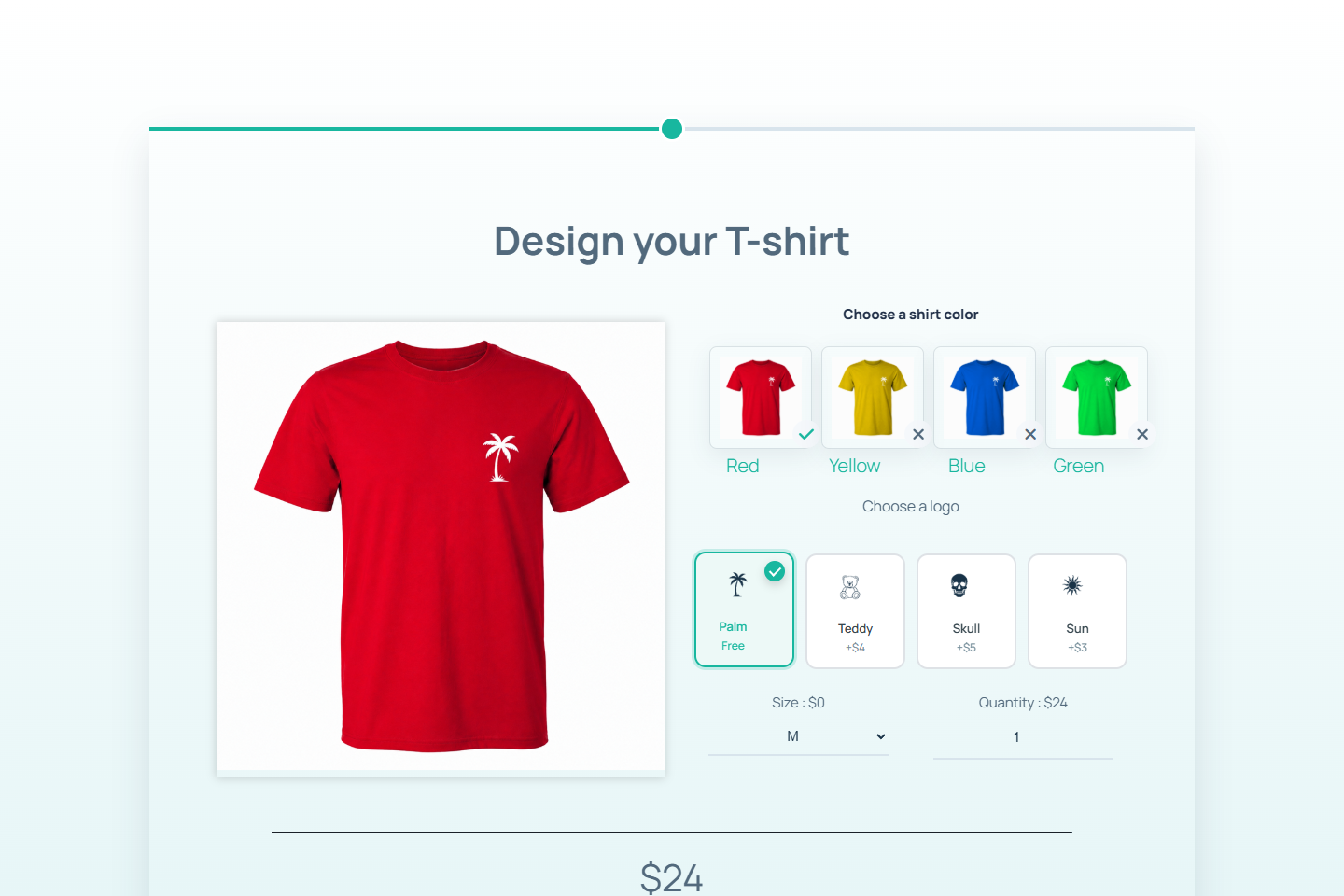
The finished WooCommerce calculator updates the T-shirt preview from the selected color and logo while keeping the live total visible.

What this guide covers

  • Existing illustrations show the T-shirt builder. Product association and cart-price handling were inspected in a WP Cost Estimation 10.6.4 snapshot on 5 October 2026. No new WooCommerce cart or order test was performed; verify your installed version and store settings. This historical code snapshot does not establish the behaviour of the currently distributed version. The actual payload of the illustrated form and its cart were not observed.
  • Create a WooCommerce product for the custom item.
  • Build one polished configuration step with Dynamic Image on the left and native option rows on the right.
  • Add each T-shirt variation in the Dynamic Image layer table.

Before you start

  • A separate authorised test site with WooCommerce and WP Cost Estimation active.
  • An existing test product you are allowed to configure, and images for the illustrated colour/logo combinations.
  • A defined unit-price formula and cart quantity; access to inspect the resulting test cart without placing a real order.

Step 1

Create the WooCommerce demo product

Start with a simple WooCommerce product that represents the custom item being configured. In the demo, the product is named Custom Logo T-Shirt Demo and uses a $24 base price.

The calculator can then collect the product options, calculate the configured price, and pass a readable summary into the WooCommerce workflow.

  • Use a clear product name.
  • Set the base price before adding option upcharges.
  • Use a product image that matches the default calculator preview.
Step 2

Build one visual product configuration step

Keep the main product choices in the same step so the shopper can see the effect of each selection immediately. In the form style settings, apply the Clean cards theme preset, then add a native two-column row: Dynamic Image on the left and product options on the right.

The Dynamic Image item uses its main image field for the default product preview. The variation images are managed later from that same item, in its Image layers table.

This works especially well for custom products because the buyer does not have to move between steps just to compare colors, logos, and pricing.

  • Put the Dynamic Image component in the left column.
  • Place color Image items, the logo Icon Picker, size, and quantity controls in the right column.
  • Use nested native rows to display choices in clean grids.
  • Use the built-in theme preset and theme controls instead of writing custom CSS.
  • Keep labels short so the step remains scannable.
T-shirt WooCommerce price calculator with dynamic image and options
The first step keeps the product preview, visual options, pricing controls, and live total in one polished configurator.

Step 3

Add color images and a logo Icon Picker

Create one option group for colors and one Icon Picker for logos. The demo colors are red, yellow, blue, and green. The logo choices are palm, teddy bear, skull, and sun.

Use radio-style behavior for each group so the shopper chooses exactly one color and exactly one logo. This prevents impossible combinations and makes the image logic easier to maintain.

  • Use Image components for each color choice.
  • Put the four color Image items inside a native 4-column row.
  • Use one Icon Picker component for the logo choice.
  • Set the Icon Picker to radio selection mode.
  • Use high-contrast logo icon images for Palm, Teddy, Skull, and Sun.
  • Keep the four logo icons in a 4-column Icon Picker grid.
  • Color group: red, yellow, blue, green.
  • Logo options: palm, teddy bear, skull, sun.
  • Set one default color and one default logo.
  • Add unique logo upgrade prices where needed: Teddy +$4, Skull +$5, Sun +$3.

Step 4

Add the T-shirt images as Dynamic Image layers

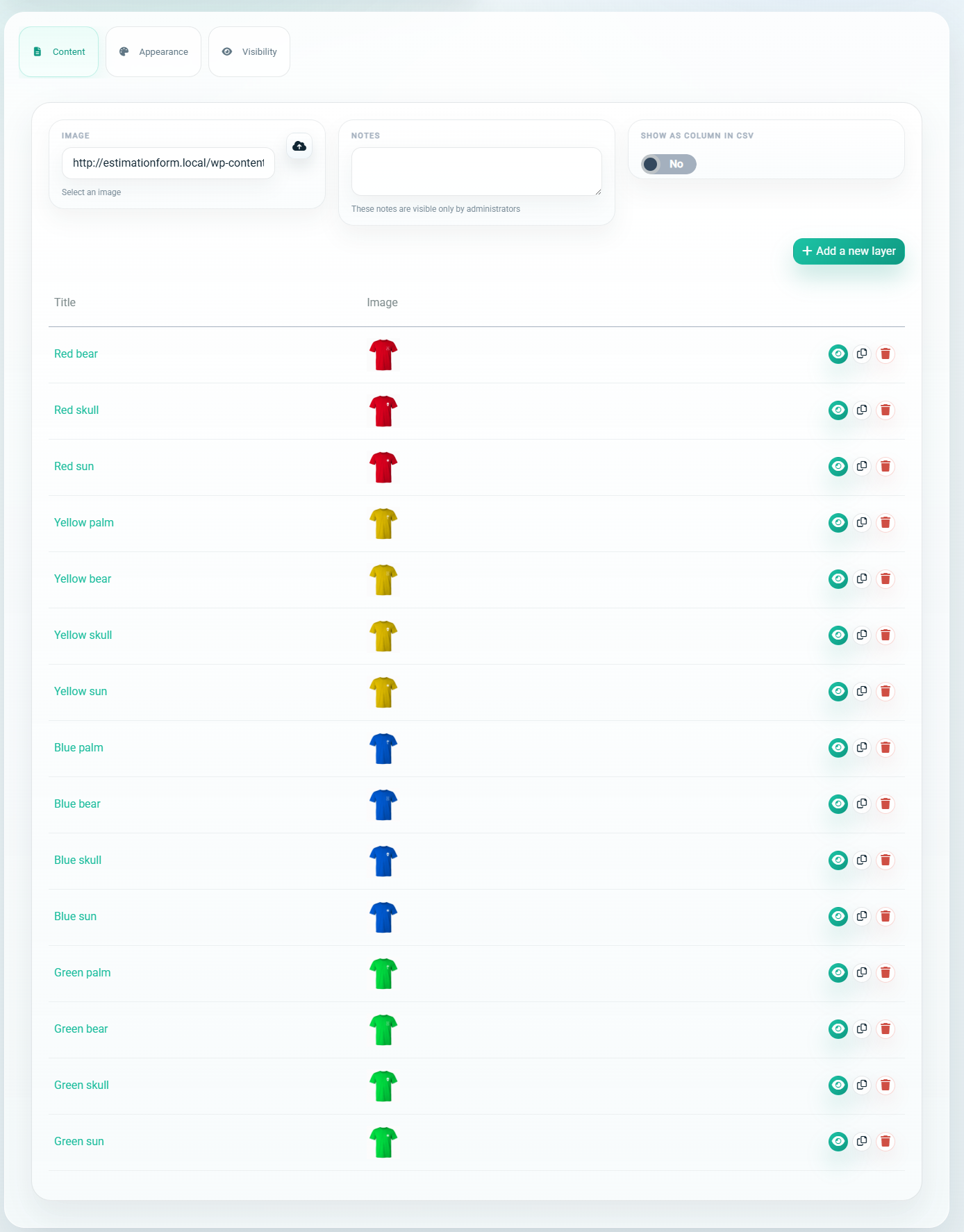
Open the Dynamic Image item from the visual builder. Keep the default red palm T-shirt in the main Image field, then scroll to the Image layers table inside the same item editor.

This table is where the extra variation images are managed. Each row is one image that can appear above the base image when its visibility conditions are true.

For the T-shirt demo, red_palm.png is the base image. The remaining 15 combinations are added as layer rows, such as Blue sun, Green skull, or Yellow teddy.

  • Use the Dynamic Image item editor, not hidden fields or manual IDs.
  • Click Add a new layer for every non-default variation image.
  • Name each layer after the visible result, for example Blue sun.
  • Select the matching image file in the Image column.
  • Use the eye icon on the layer row to open its visibility rules.
Dynamic Image Image layers table in the plugin backend
The Image layers table belongs to the Dynamic Image item. Each row stores one variation image and the eye icon opens that layer's visibility conditions.

Step 5

Set the layer conditions in the visual builder

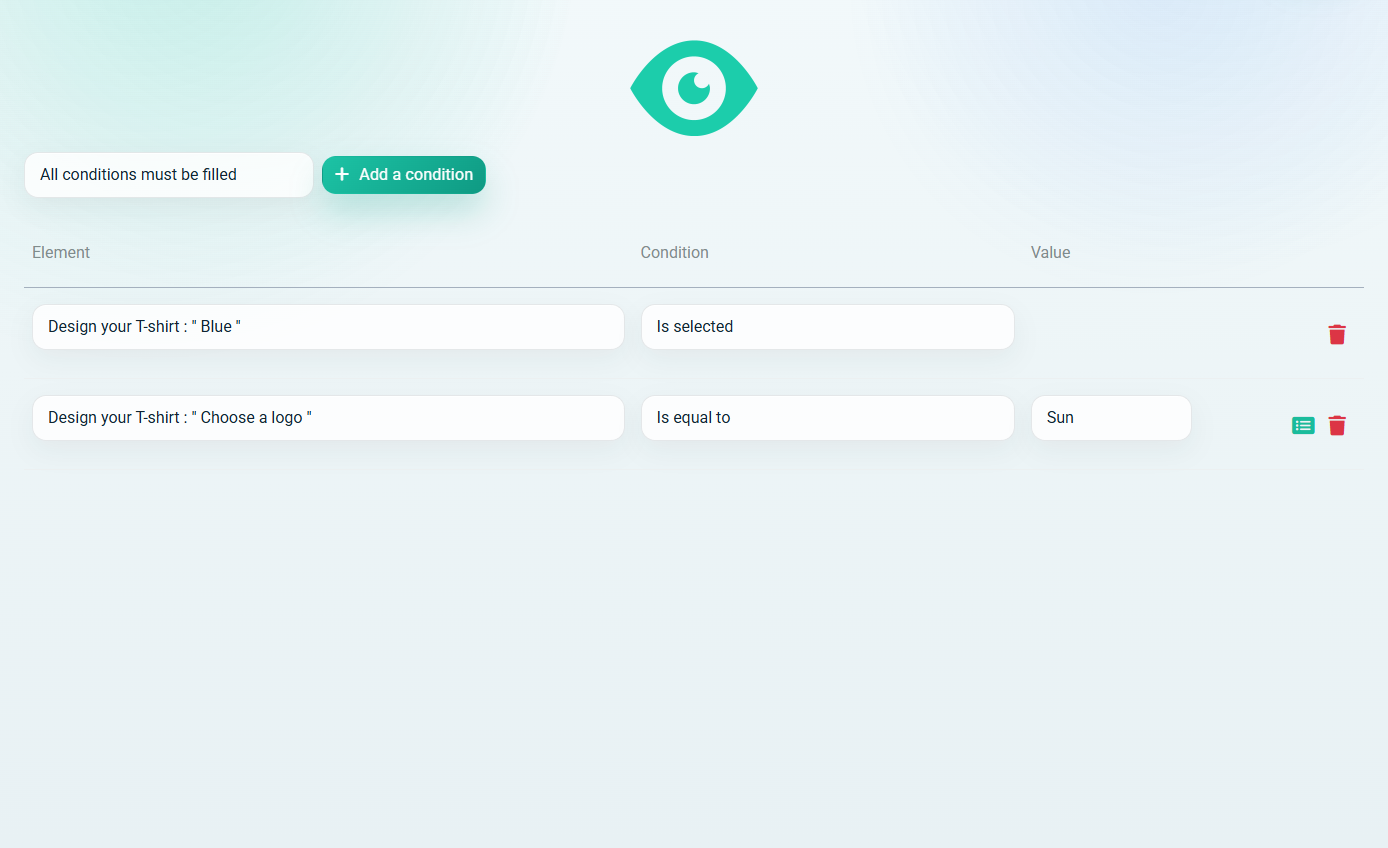
After clicking the eye icon on a layer row, the plugin opens the layer visibility condition builder. This is the screen that controls when that specific image appears.

For blue_sun.png, leave the operator set to All conditions must be filled. Then add two rows: the Blue color Image item must be selected, and the logo Icon Picker must be equal to Sun.

The logo price is not used to decide which image appears. The Dynamic Image layer checks the selected Icon Picker label, so clear labels such as Palm, Teddy, Skull, and Sun matter.

  • First condition row: choose the Blue color Image item, then Is selected.
  • Second condition row: choose the logo Icon Picker, then Is equal to, then Sun.
  • Use All conditions must be filled when the image depends on both color and logo.
  • Repeat the same pattern for the other variation images.
  • Save the condition screen, then save the Dynamic Image item and the form.
Dynamic Image layer visibility conditions in the backend
The visibility condition builder is visual: select the form element, choose the condition, and choose the Icon Picker label when the condition needs a logo value.

Step 6

Define a unit price before multiplying quantity

Keep the illustrated size choices: M adds 0, L adds 2 and XL adds 4. For a Sun logo (+3) and size L (+2), the teaching unit price is 24 + 3 + 2 = 29. For quantity 3, the expected line subtotal is 29 × 3 = 87 before store taxes, shipping or discounts. These are example product amounts, not plugin prices.

Decide which item supplies the configured product price and which value supplies the cart quantity. Do not send 87 as the custom unit price and also send quantity 3: that would count quantity twice. Check the payload for your actual form, especially when options are separate priced items.

  • Quantity 1 with Sun/L: expected unit price 29 and line subtotal 29.
  • Quantity 3 with Sun/L: expected unit price 29 and line subtotal 87.
  • Without the +3 logo option, if the form permits it: expected unit price 26 and line subtotal 78 at quantity 3.
  • Require a valid quantity and define what an empty size or optional field means before calculating.
WooCommerce price calculator options and live total
Native rows group visual choices, size, quantity, and price updates while the live total stays visible.

Step 7

Associate the item with a product, then embed the form

In the inspected item editor, WooCommerce product selects an existing catalogue product. Use current woo product assigns the product detected on a WooCommerce product page; its documented scope is that page, not an unrelated landing page. Choose the association appropriate to where you embed the form.

In form settings, the inspected Woo Commerce controls include Add selected items to cart and Add summary as product attribute. The cart setting says that all priced items must be products from the WooCommerce catalogue: review every priced option’s association instead of assuming that several independent items become one configured product line. Use your own form ID in the shortcode; a summary alone does not prove the price handoff.

In the inspected server code, each submitted product price becomes custom_price, quantity is passed separately to add_to_cart, and the cart calculation calls set_price with that custom price. This explains why the submitted price must represent the unit amount; the actual frontend payload still needs a test with your form.

[estimation_form form_id="9" fullscreen="true"]
  • Check the product ID and any chosen variation in the test cart.
  • Confirm which form item carries the unit price and which value supplies quantity.
  • Review the summary option and customer-visible choice labels.
  • Keep the product association when returning from the cart.

Step 8

Verify form, unit price and cart line separately

On the separate test site, select Sun and L with quantity 3. First check the form’s intended result, then inspect the cart product, unit price 29, quantity 3 and line subtotal 87. If the form displays a line total, label it accordingly; it must not be mistaken for the unit price sent to WooCommerce.

Repeat with quantity 1, then change or hide the optional logo upgrade according to your conditions. A hidden choice must not leave a stale charge. Check an empty required quantity, then return from the cart to the form and confirm that current selections and the cart amount agree. These are expected results to reproduce, not observed cart tests for this article.

  • Record product association, selected options, unit price, quantity and line subtotal at each checkpoint.
  • Check how returning and adding again affects cart quantities instead of assuming replacement.
  • Verify tax, coupon, variation and stock behaviour separately with your store configuration. No general compatibility guarantee is made here.
  • Do not change taxes, coupons or stock on a live store to test this walkthrough.

Launch checklist

  • Check all colour/logo image combinations and the layer conditions.
  • Confirm default selections and the configured product association.
  • Verify 29 × 3 = 87 in the actual test cart, not only in the form.
  • Exercise quantity 1, a removed/hidden option, empty required quantity and returning from the cart.
  • Review summary data, duplicate additions and the store’s tax/discount rules separately.
  • Keep the test product and form separate from the live store until their results are verified.
WooCommerce calculator FAQ

Frequently asked questions

Does the form total prove the cart price?

No. In the inspected integration, custom_price is applied as a unit price and WooCommerce receives quantity separately. Inspect the actual product, unit amount, quantity and line subtotal in your test cart.

How is the product associated?

The inspected item editor offers WooCommerce product for a catalogue association and Use current woo product for the product detected on a product page. Check which item is priced and which product the test cart receives.

What does Dynamic Image do?

It illustrates the selected colour/logo combination using conditional layers. Keep the existing layer setup, but test the cart association and price independently from the visual preview.

Are taxes, coupons and stock guaranteed by this example?

No. The example gives an expected subtotal before those store rules. Their behaviour, variations and repeat additions must be tested with your installed plugin and WooCommerce configuration.

Build a visual WooCommerce product calculator

Use the same structure for printed apparel, engraved products, packaging, signage, rentals, bundles, or any custom WooCommerce product where options change both the image and the price.