
Loading...

Your privacy choices

Google Analytics 4 measures site visits and Google Ads measures advertising clicks and checkout completions, only for the purposes you accept. Neither is required to buy. Necessary checkout services remain available.

Your privacy choices

Google Analytics 4 measures site visits and Google Ads measures advertising clicks and checkout completions, only for the purposes you accept. Neither is required to buy. Necessary checkout services remain available.

These optional Google services may set audience or advertising cookies after your acceptance. Analytics and advertising are separate choices. Acceptance and refusal are remembered in this browser for a fixed 180 days, without extending the period when read. You can withdraw or change your choices at any time using Privacy choices in the footer. Withdrawal removes optional first-party Google cookies and reloads the page if Google has already loaded (using session storage in this tab if persistent storage refuses the withdrawal; a blank page opens only if both stores cannot safely record the withdrawal and a stale approval remains). Checkout, external demos, videos, support and newsletter services have their own privacy information.

AI calculation guide

Generate WordPress pricing formulas with AI

Turn a pricing rule into a formula inside WP Cost Estimation. This guide uses a painting estimate at €35 per m² with a 10% discount above 100 m², so you can check exactly what the generated calculation should do.

Updated 2026-10-275 min read
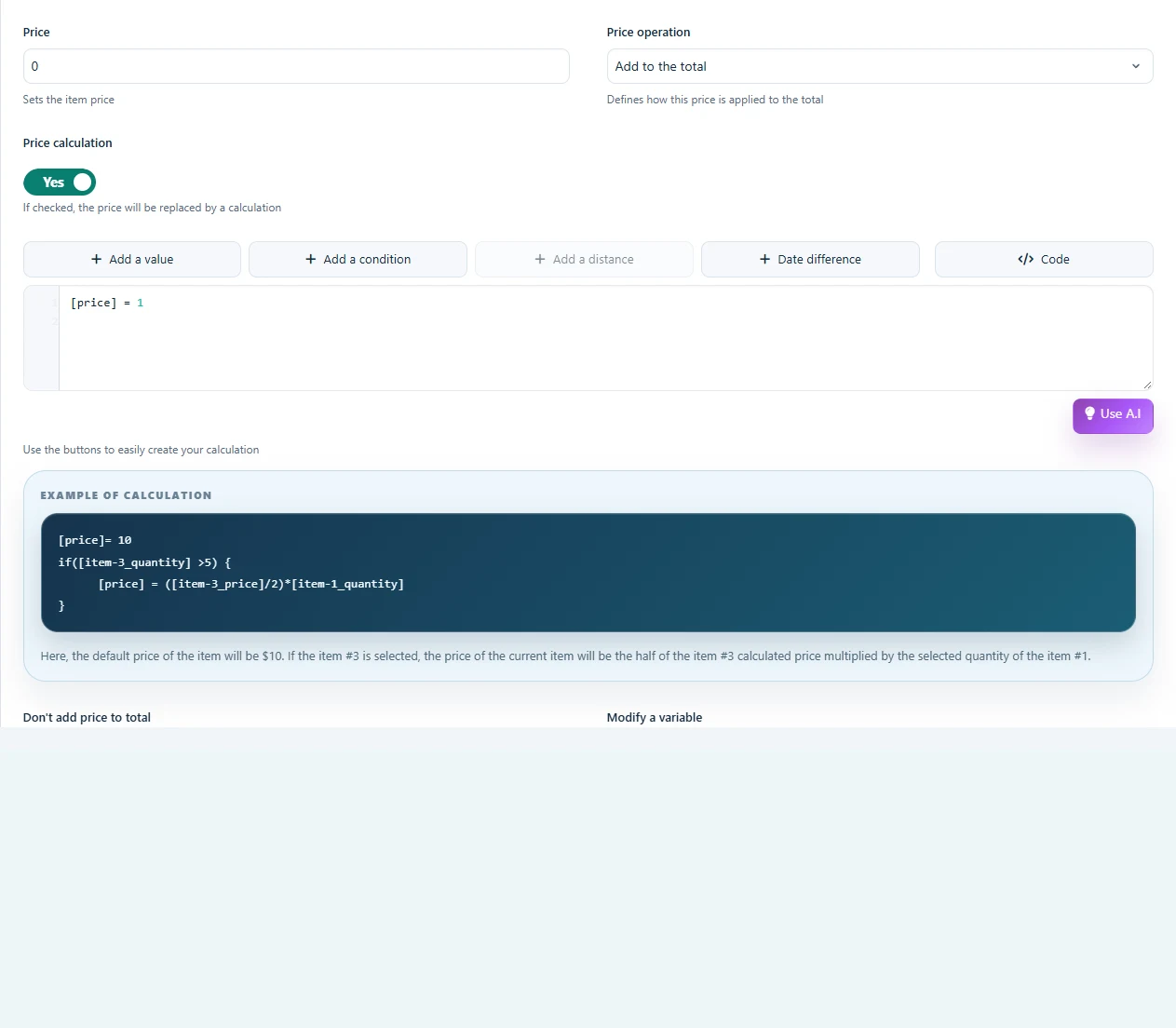
WordPress price calculation editor with its Use A.I button

What this guide covers

  • Describe a pricing rule precisely
  • Generate a formula in its field context
  • Verify thresholds and calculated totals

Before you start

  • An active plugin license with AI tools
  • A configured provider API key
  • A form with a numeric surface-area field

Define the price and the discount scope

Use your own business rates. In this example, surface area is multiplied by €35. When the area is strictly greater than 100 m², reduce the whole painting subtotal by 10%. At exactly 100 m² there is no discount.

Open the calculation editor

Create the surface-area input first. In the component whose price should use this rule, enable Price calculation and choose Use A.I. Name the existing input clearly in your instruction so the formula can use the right field.

WordPress price calculation editor with its Use A.I button
Use A.I is available next to the price calculation editor.

Describe the formula you need

Charge €35 per m². Above 100 m², apply a 10% discount to the whole painting subtotal.

Specify that this rule covers painting only, before tax, with no additional quantity multiplier. If you need a minimum fee, travel cost or extra options, give each rule and its order explicitly.

Review the generated formula

Check the referenced field, the comparison operator and the discount base. The output belongs in the plugin’s calculation editor. Do not paste a generic JavaScript example with invented field IDs. Save the component and open the form preview.

Check these three expected results

These are arithmetic checks for the example rule, before taxes and extras. Enter each area in the actual form and compare its painting subtotal.

80 m²  × 35 €       = 2 800 €
100 m² × 35 €       = 3 500 €
120 m² × 35 € × 0.9 = 3 780 €
  • Also test empty input and zero.
  • Check just below and just above 100 m².
  • Return to the previous step and change the area.

Launch checklist

  • Confirm field references and quantity handling
  • Check the summary, email and PDF totals
  • Test payment settings separately if enabled
Guide FAQ

Frequently asked questions

Do I need my own API key?

Yes. Configure your provider in the plugin’s AI Settings. OpenAI and Anthropic are supported for text-based AI tools. API usage is billed by your provider separately from the plugin license. Optional image generation uses OpenAI.

Does AI calculate every visitor’s price?

This tool helps write the formula during setup. The form then runs its saved pricing rules. The optional conversational visitor assistant is a separate feature.

Can I change the formula manually?

Yes. The generated calculation remains editable in the normal calculation editor. Recheck your expected totals after each change.

Build your own pricing calculator

AI tools are included in Pro and Agency. Connect your own provider API key; provider usage is billed separately. Review the generated structure and calculations before publishing.