
WordPress → E&P Forms → AI Settings; forms list → A.I Wizard
Before you start
Use an API account with the selected provider and an edition that includes the desired AI tools. Provider usage is billed separately. Prompts and the context needed for the task are sent to that provider; avoid unnecessary personal information.
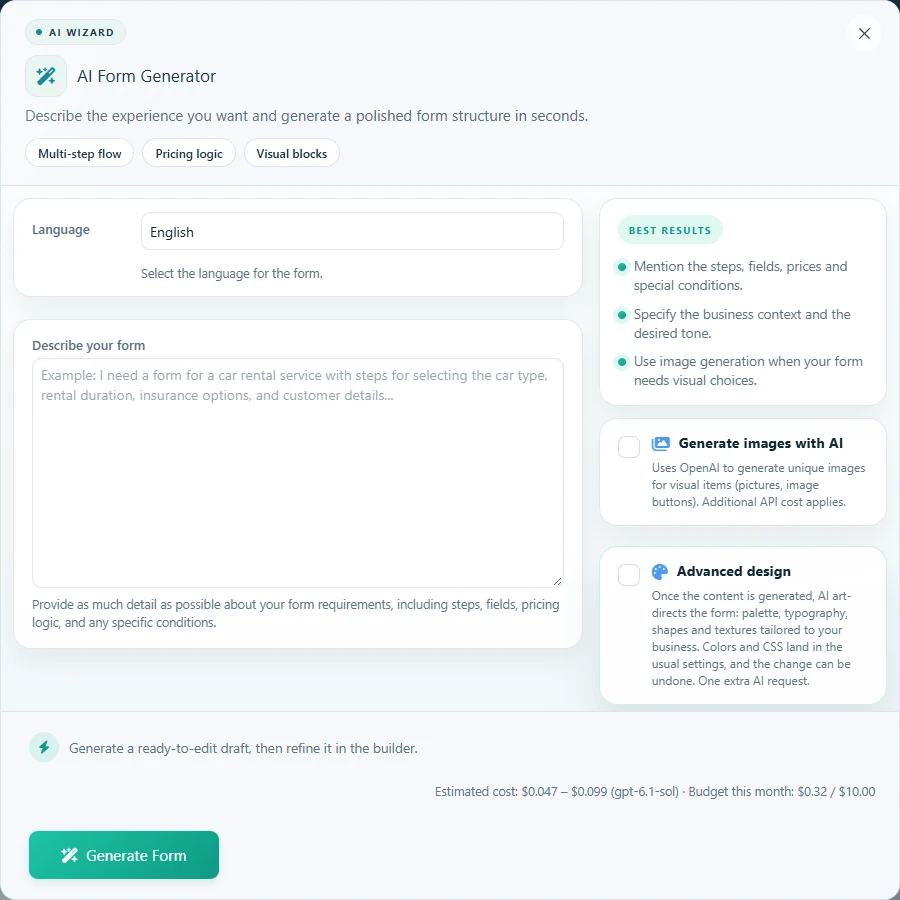 Open full-size screenshot
Step-by-step instructions
In AI Settings, select the provider and model, enter its API key and use the connection test. Review usage limits and feature settings before enabling visitor-facing AI.
Open A.I Wizard and describe the service, language, steps, required fields, prices and conditional rules. Give exact amounts and expected examples instead of asking for an unspecified “complete form”.
Review the proposed structure and any warnings before creating the form. Refine a specific point if needed, then inspect the saved steps, items, links and formulas in the normal editor.
For an existing form, use its AI edit action and request one bounded change. Review the change preview before applying it. Keep a duplicate or export before major changes; inspect available snapshots before a restore.
Use the AI actions in supported content or calculation editors for a focused draft. Configure emails, payment credentials and integrations yourself, then test the complete visitor flow.
Configure the visitor’s Smart Assistant
Open Form settings → A.I Assistant. Enable Smart Assistant for this form and choose Suggest or Autofill. Review Allow automatic selections separately: it controls automatic choices for buttons, checkboxes and dropdowns. Set the welcome message, form-specific instructions, daily requests per IP and maximum conversation turns before publishing.
Ask for a known quote, an ambiguous request and an unsupported option. Confirm that the visitor can review choices, correct fields and complete the normal validation and payment flow. Model output must not replace the form’s pricing rules.
Generate images for visual choices
The wizard’s Generate images with AI option uses OpenAI and incurs additional API usage. Review every generated image before publishing: options should be recognizable, consistently framed and described by a visible label. You can also supply your own images.
A useful starting prompt
Create an English cleaning quote with three steps: property, extras, contact. Ask for area from 20 to 300 m². Price is 40 plus 2 per m². Add an optional oven cleaning at 25. Require an email. Do not enable payment. At 80 m² with oven cleaning, the total should be 225.
Check the result
Verify the generated arithmetic with known values, both sides of every condition and back navigation. Check labels, required fields and recipients. Generated content is a starting point, not evidence that a business rule or payment flow works.
If it does not work
For authentication or quota errors, check the provider key and billing. For incomplete generation, reduce the scope and retry the specific task. Review the plugin’s AI usage/error information; do not repeatedly apply a failed change without checking the current form.