
Edit component → Price → Price calculation or Quantity calculation
Practical video guides
English narration and captions
Build accurate dynamic prices
Combine a base price with a distance slider, keep choices exclusive and check the calculation with known values.
Before you start
Write the business rule in plain language and calculate two expected results by hand. Add the input fields first. Use the editor’s value picker so references match the IDs in your form.
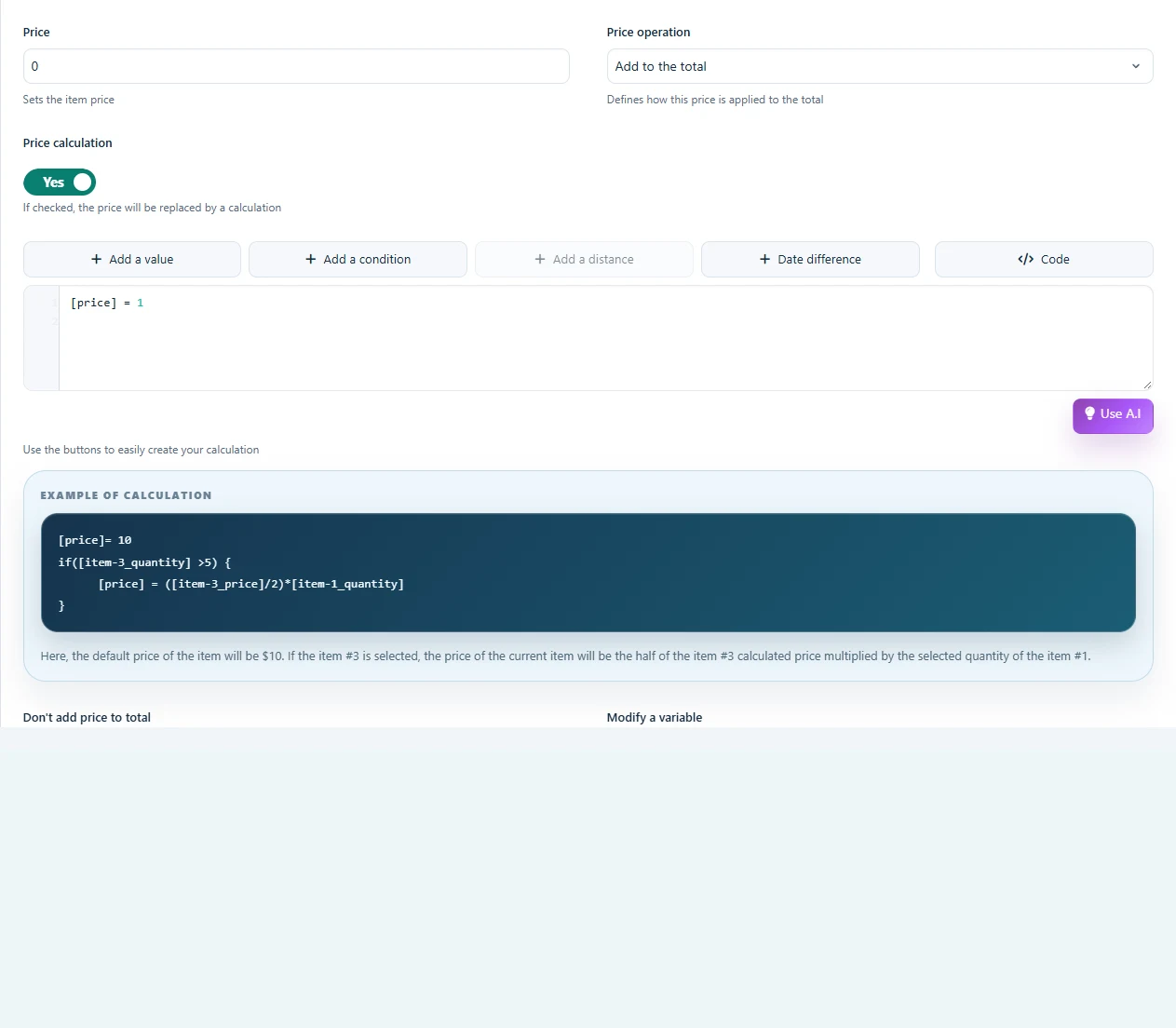 Open full-size screenshot
Step-by-step instructions
Open the calculation for the intended result: price, quantity or a variable. Use Add a value to insert a field value, item price, quantity or variable.
For a price calculation, assign the result to [price]. Use +, -, * and / with parentheses where needed. Write decimal constants with a dot, independently of the displayed currency format.
Add a condition through the editor to insert the correct comparison tokens. Set a default result before conditional overrides so every path assigns a value.
Save and test with zero, minimum, typical and maximum inputs. Go back and change dependent fields. Protect divisions against zero and round only at the intended stage.
Example: base fee plus area
For a base fee of 50 and a rate of 12.5 per square metre, 8 m² gives 150. The example uses item 1 only as an illustration: replace its token with the area field selected through Add a value. Keep the priced component quantity at 1 for this total-fee example.
[price] = 50 + ([item-1_value] * 12.5);Example: minimum charge
Assign the base result, then apply a minimum. For 2 units at 12.5, this returns 50; for 8 units, it returns 100. This is an item price example, before other items, coupons or taxes.
[price] = [item-1_value] * 12.5;
if ([price] < 50) {
    [price] = 50;
}
Check the result
Compare expected item prices with the summary and final total. When quantity is 3 and the unit price is 20, the line total must be 60, not 180. Test a cleared input and a deselected option as well.
If it does not work
Check the result token, field IDs, decimal notation and whether quantity is applied twice. Avoid circular dependencies. The calculation editor is for supported formulas; browser APIs, network calls and arbitrary application scripts are not a pricing rule.