
Edit a form → Form settings
Before you start
These settings apply to the current form. Choose the desired outcome first: request a quote, take payment or send products to a WooCommerce cart.
 Open full-size screenshot
Step-by-step instructions
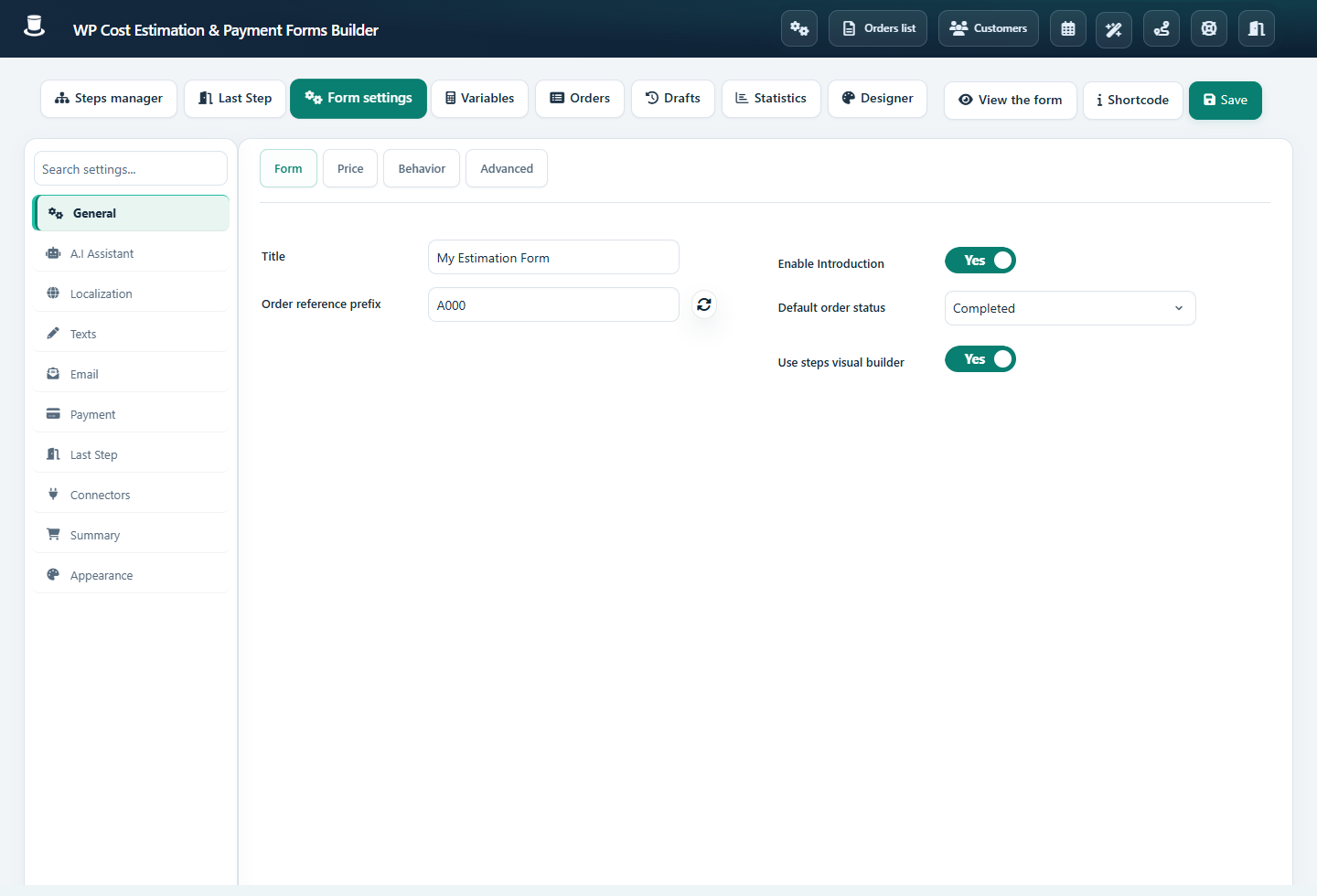
In General, review the form name, order reference prefix, navigation behavior and save-for-later options. Configure the introduction if you want a screen before the first question.
Set currency symbol, symbol position, decimal and thousand separators, and date format. Display formatting does not convert currencies; payment currency must agree with your gateway configuration.
In Texts, adapt labels, navigation buttons, validation messages and the success message. Keep error messages specific enough to tell visitors what to correct.
Review Last Step and Summary: selected items, quantities, totals, tax and PDF options. Configure a final redirect only when you have a destination page ready.
Set any VAT rate or discount coupons deliberately, then check the order of discounts and tax with a numeric example. Configure Email, Payment and Connectors using their dedicated guides.
Email verification, signature and final confirmation
In Last Step settings, review Verify email, Use e-signature, legal notice and reCAPTCHA as needed. Configure verification emails in Email and test with an address you control. Keep the signature and required checks reachable on a phone. Test the redirect only after the submission has finished.
Privacy and spam controls
Review the terms/consent wording, customer account links and reCAPTCHA settings available in your installation. Enable only the data collection you need. A privacy-related switch does not by itself make a site compliant; explain what happens to submissions and connected services in your own policy.
Check the result
Submit a known example and compare the on-screen summary, saved order, email, PDF and redirect. Verify decimal formatting and the same tax/discount result everywhere.
If it does not work
If a setting seems absent, check the active tab, selected field/payment mode, installed edition and required integration. The last-step layout and its settings are separate screens.