
Component/step visibility settings, or a link in Steps manager
Before you start
Create the controlling choices first. A visibility condition decides whether something is shown; a link condition decides which step comes next. A price condition changes an amount, not the navigation.
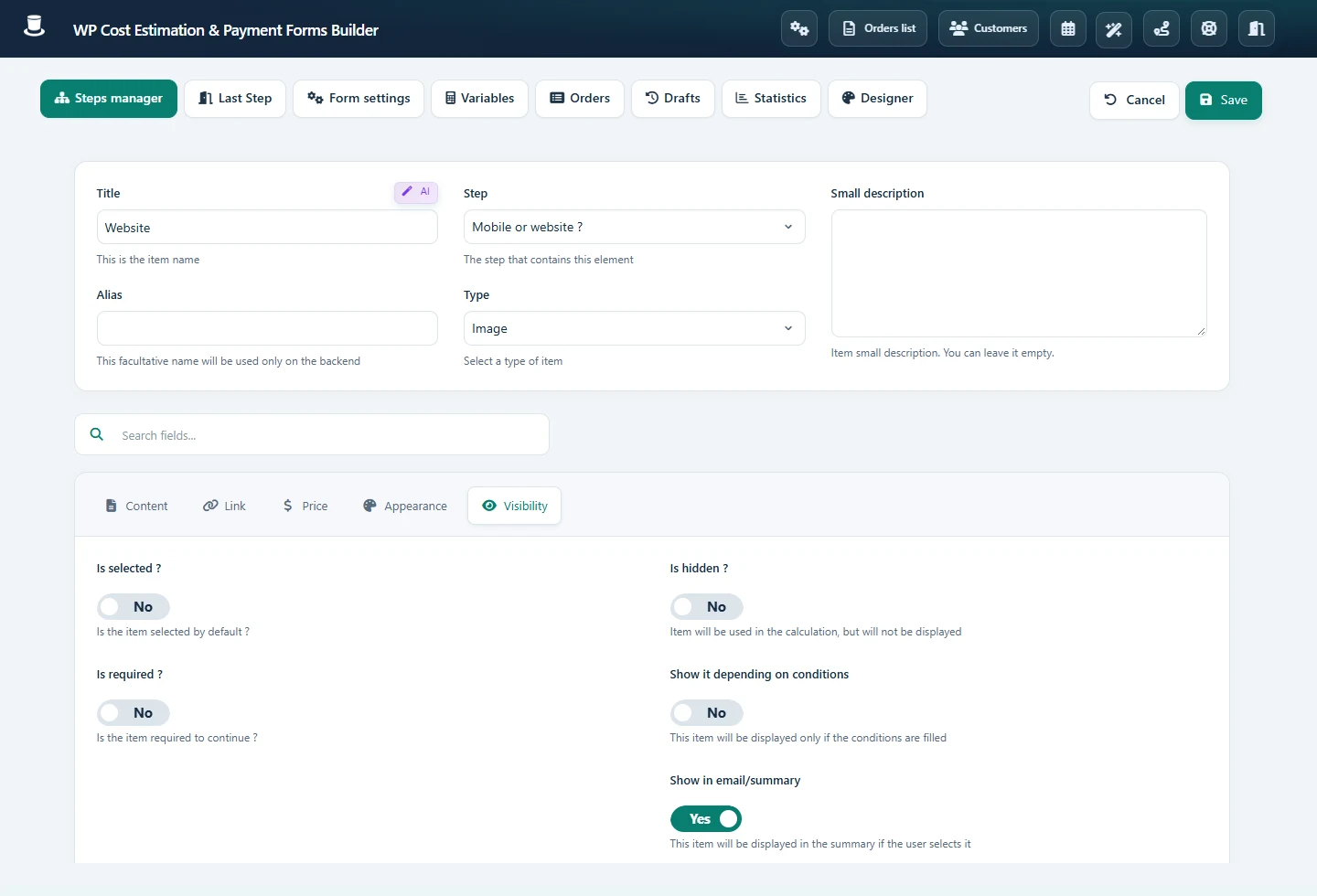 Open full-size screenshot
Step-by-step instructions
Open the relevant visibility or link condition editor. Select the existing component, the comparison and the expected value using the provided selectors.
Choose whether all conditions must match (AND) or at least one must match (OR). For example, show installation details only when “Installation” is selected.
For branches, define a clear route for each choice and a route for visitors who do not choose the optional service. Avoid two outgoing links that are true for the same answer.
Save and test both true and false cases. Go back and change the controlling answer; check the displayed fields, selected options, price and final summary again.
Check the result
Make a small table of answers and expected next steps before testing. Each branch must reach the final step, and hidden optional items must not leave an unexpected charge in the summary.
If it does not work
After deleting or replacing a field, revisit rules that referenced it. Check AND/OR and numeric versus text comparisons. Simplify to one rule while diagnosing a blocked path.