Loading...

Your privacy choices

Google Analytics 4 measures site visits and Google Ads measures advertising clicks and checkout completions, only for the purposes you accept. Neither is required to buy. Necessary checkout services remain available.

Your privacy choices

Google Analytics 4 measures site visits and Google Ads measures advertising clicks and checkout completions, only for the purposes you accept. Neither is required to buy. Necessary checkout services remain available.

These optional Google services may set audience or advertising cookies after your acceptance. Analytics and advertising are separate choices. Acceptance and refusal are remembered in this browser for a fixed 180 days, without extending the period when read. You can withdraw or change your choices at any time using Privacy choices in the footer. Withdrawal removes optional first-party Google cookies and reloads the page if Google has already loaded (using session storage in this tab if persistent storage refuses the withdrawal; a blank page opens only if both stores cannot safely record the withdrawal and a stale approval remains). Checkout, external demos, videos, support and newsletter services have their own privacy information.

Complete Documentation

Documentation

Everything you need to know about WP Cost Estimation

Steps Manager

Section 5•5 min read

Add, reorder and configure the steps of your multi-step forms.

Mastering the Steps Manager in WP Cost Estimation & Payment Forms Builder

Accessing the Steps Manager

To access the Steps Manager, edit or create a form which will lead you to the Form Edition Page:

Steps Manager Interface

Understanding the Steps Manager

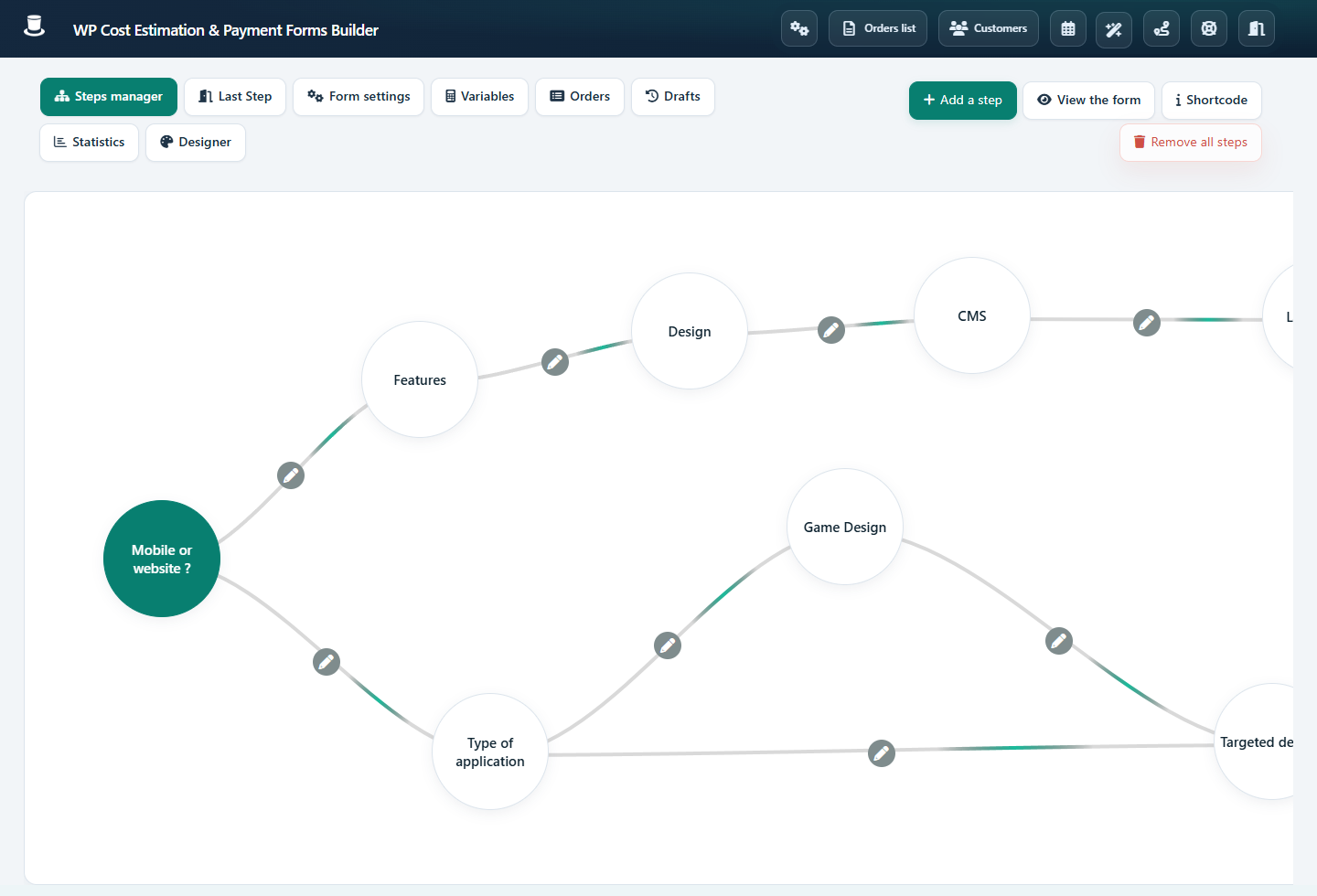
The Steps Manager, which is the default panel upon opening, displays all the steps of the form. It facilitates linking and creating conditions to display each step based on desired conditions. A static step is always appended at the end of the form, following the configured steps. For a single-step form, simply edit the last step without creating additional steps.

Step Circle Actions
Step Circle Actions

Hover over a step circle to reveal the possible action buttons:

Define as Start Step

Set this step as the first step of the form.

Start a Link to Another Step

Create a link from this step to another. You can define the conditions of each link.

Edit This Step

Edit the content of the selected step.

Duplicate This Step

Duplicate the selected step and all its content in one click.

Remove This Step

Delete the selected step and its content.

Linking Steps

To link two steps, click the "Start a Link to Another Step" button on the desired step, then click the target step circle:

Linking Steps Process
How Links Work

The pencil icon at the middle of the link allows you to define the conditions of this link. When the "Next step" button is clicked in a step, the plugin verifies the conditions of all the links starting from this step.

Link Resolution:

  • If a valid link is found, its target step will be opened as the next step.
  • If no valid link is found, the final step will be shown.
  • If multiple valid links are found, the one with the fewest defined conditions will be selected.

Pro Tip: Plan your form's flow before creating steps and links. A well-planned structure will make it easier to create and maintain your form's logic.

Keep moving

Useful next steps from documentation