
Forms list → Shortcode
Before you start
Save the form and note its ID. Use a WordPress Shortcode block or a page-builder module that executes shortcodes, not a code-display block.
 Open full-size screenshot
Step-by-step instructions
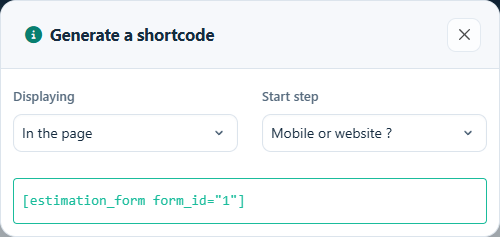
Open the Shortcode dialog for the intended form. Choose In the page, Fullscreen or Popup and, if needed, a different Start step.
Copy the generated shortcode and paste it into your page. The sample below uses form 1; replace it with the actual ID from your list.
For Popup, keep the popup shortcode on the same page and add the trigger classes shown by the dialog to your button or link. Both the form ID and trigger class must match.
Publish or update the page. Test the public URL while logged out; a page builder’s editing canvas can behave differently from the published page.
Shortcode examples
Use one of these display modes. The starting-step attribute is step, not start_step; select an existing step through the dialog to obtain its ID.
[estimation_form form_id="1"]

[estimation_form form_id="1" fullscreen="true"]

[estimation_form form_id="1" step="2"]
Popup shortcode and trigger
[estimation_form form_id="1" popup="true"]

<a href="#" class="open-estimation-form form-1">Open form</a>
Check the result
The correct form loads, popup opens and closes, and the complete flow works on mobile. Test required fields, calculations and submission from the embedded page, not only Preview.
If it does not work
If the shortcode prints as text, change the block/module. If the form is stale or missing, verify its ID, clear page caches and inspect JavaScript errors. If popup clicks fail, verify both trigger classes and that the popup shortcode is present.