
Plugin toolbar → Orders list, or a form → Orders / Statistics
Before you start
Order storage must be enabled for records to appear. Keep a test reference and know whether the form requests a quote, direct payment or WooCommerce checkout.
 Open full-size screenshot
Step-by-step instructions
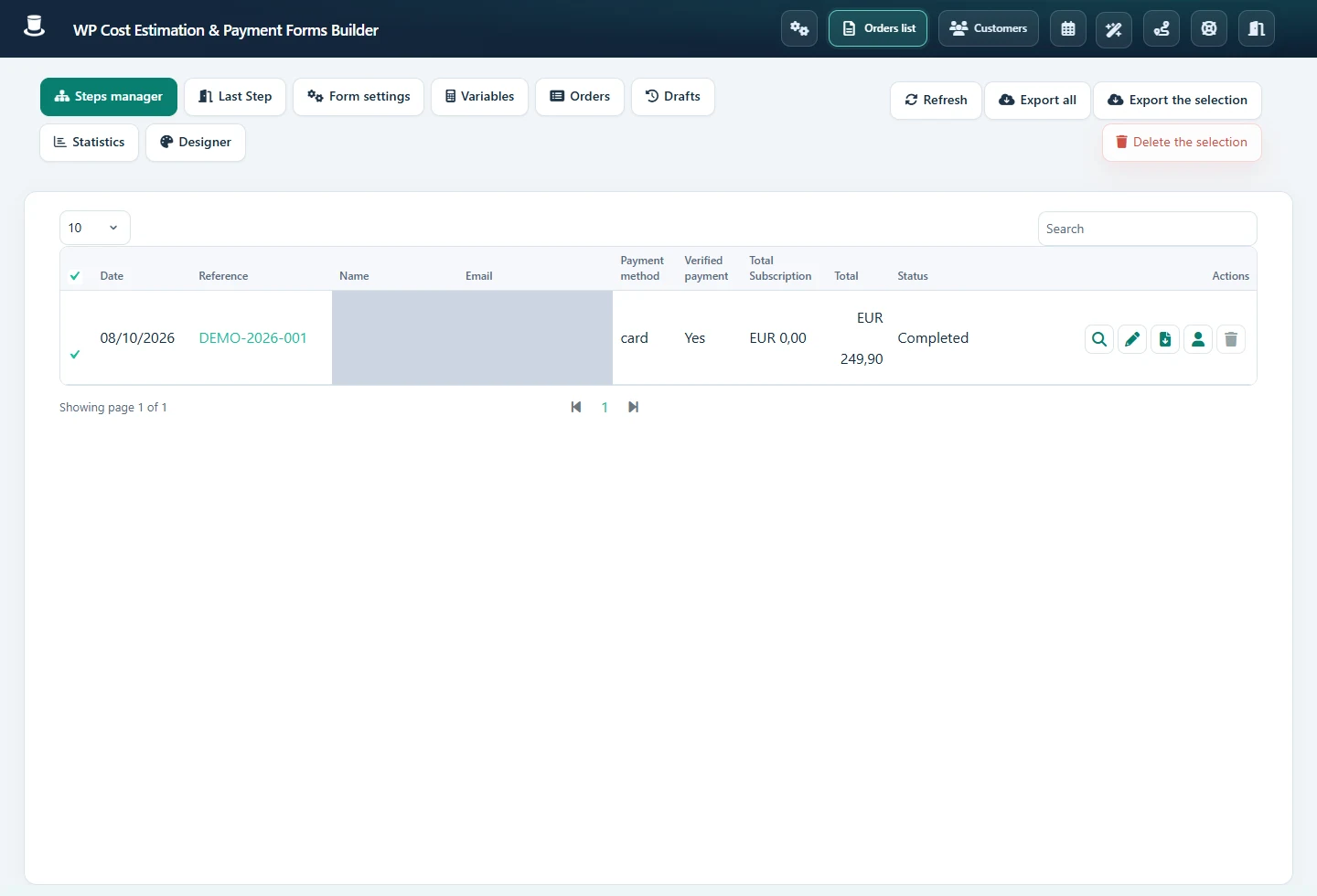
Open Orders list for all forms or Orders from the specific form. Search/filter using the available reference, date or status controls.
Open the order and compare customer details, selected items, quantities and amounts with the intended submission. Review payment status separately.
Use the available export/PDF actions for the records you need. Review recipients before resending an email or payment link; these actions contact the customer.
Open Statistics and choose the relevant time period. Keep estimated amounts separate from amounts marked paid and compare transaction evidence when reconciling revenue.
Check the result
A test submission is findable with its correct reference and values. Counts use the intended form/date range, and payment records match the provider or WooCommerce order.
If it does not work
Check filters, storage settings and retention before concluding a submission was lost. If the visitor saw an error, capture its stage and inspect logs; do not assume a missing email means no order was stored.