
Loading...

Your privacy choices

Google Analytics 4 measures site visits and Google Ads measures advertising clicks and checkout completions, only for the purposes you accept. Neither is required to buy. Necessary checkout services remain available.

Your privacy choices

Google Analytics 4 measures site visits and Google Ads measures advertising clicks and checkout completions, only for the purposes you accept. Neither is required to buy. Necessary checkout services remain available.

These optional Google services may set audience or advertising cookies after your acceptance. Analytics and advertising are separate choices. Acceptance and refusal are remembered in this browser for a fixed 180 days, without extending the period when read. You can withdraw or change your choices at any time using Privacy choices in the footer. Withdrawal removes optional first-party Google cookies and reloads the page if Google has already loaded (using session storage in this tab if persistent storage refuses the withdrawal; a blank page opens only if both stores cannot safely record the withdrawal and a stale approval remains). Checkout, external demos, videos, support and newsletter services have their own privacy information.

Build your form

Style forms and check mobile layouts

Use the form designer and appearance settings to match your brand while keeping quote forms readable, responsive and keyboard accessible.

Updated v10.6.771 min read
On this page
Where to find it

Forms list or form toolbar → Designer; Form settings → Appearance

Before you start

Finish the basic form flow first. Keep a duplicate before a broad visual change, and prepare images with consistent proportions.
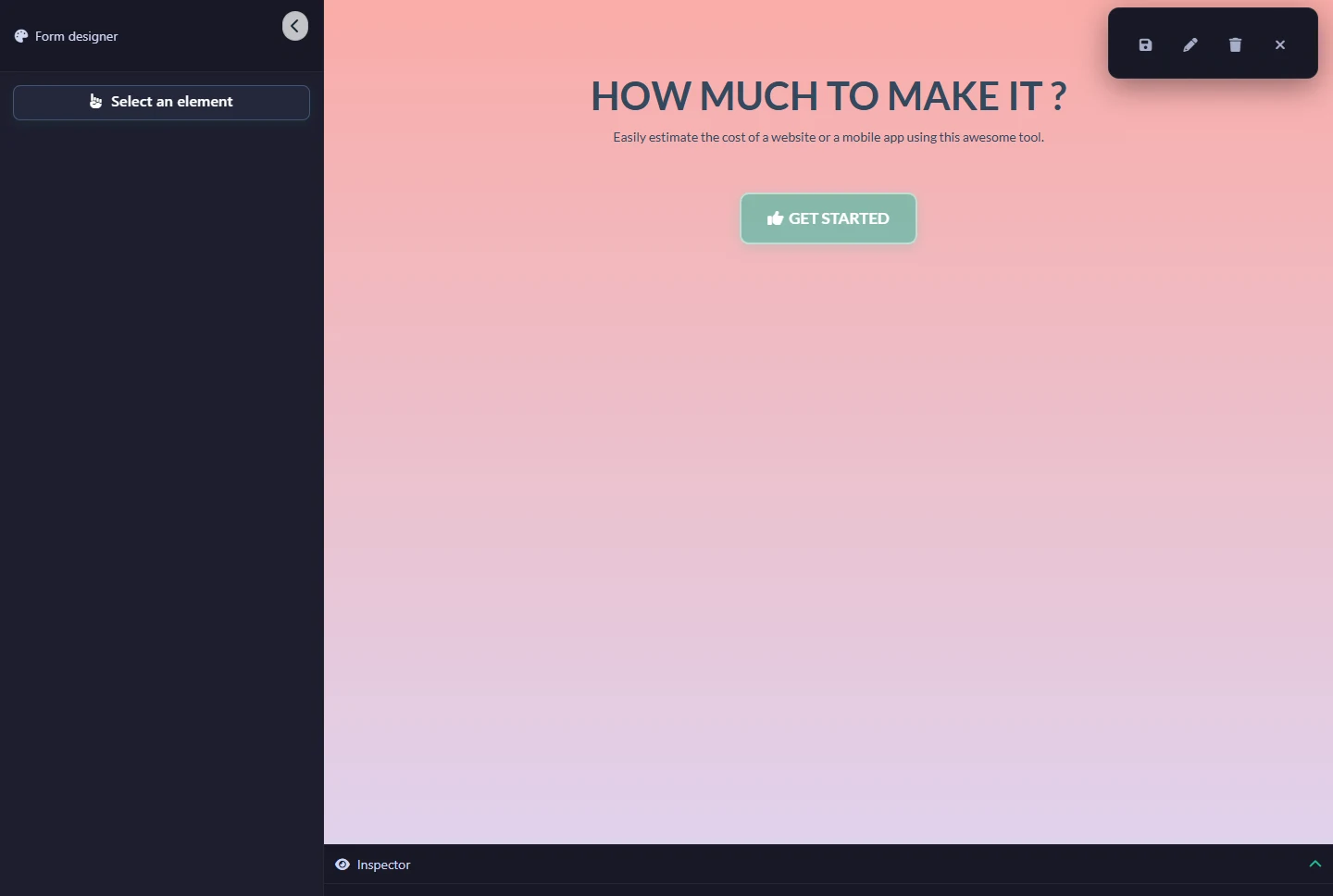
Form designer displaying a live introduction and the element selection toolOpen full-size screenshot
Choose Select an element to inspect and style a part of the form. Screenshots use the English plugin interface; translated labels can differ.

Step-by-step instructions

  1. Set the main, background and text colors in the form’s design settings. Check readable contrast for labels, hints and selected choices.

  2. Open Designer for visual component styling. Adjust a small set of elements first and preview the result before applying many overrides.

  3. Use component Appearance for field-specific options. Keep required labels visible, include useful image text and avoid relying only on color to explain selection.

  4. Preview on desktop and phone, then test the embedded page. Check long labels, error messages, radio groups, summary tables and popup closing.

Check the result

No horizontal scrolling is required to complete the form. Focus is visible with the Tab key, buttons are usable by touch, and changing a theme style does not hide the final confirmation.

If it does not work

If the embedded page differs, isolate theme/page-builder CSS on a test page. Scope custom rules to the intended form and avoid forcing display with !important on the main panel or final step.