Loading...

Your privacy choices

Google Analytics 4 measures site visits and Google Ads measures advertising clicks and checkout completions, only for the purposes you accept. Neither is required to buy. Necessary checkout services remain available.

Your privacy choices

Google Analytics 4 measures site visits and Google Ads measures advertising clicks and checkout completions, only for the purposes you accept. Neither is required to buy. Necessary checkout services remain available.

These optional Google services may set audience or advertising cookies after your acceptance. Analytics and advertising are separate choices. Acceptance and refusal are remembered in this browser for a fixed 180 days, without extending the period when read. You can withdraw or change your choices at any time using Privacy choices in the footer. Withdrawal removes optional first-party Google cookies and reloads the page if Google has already loaded (using session storage in this tab if persistent storage refuses the withdrawal; a blank page opens only if both stores cannot safely record the withdrawal and a stale approval remains). Checkout, external demos, videos, support and newsletter services have their own privacy information.

Complete Documentation

Documentation

Everything you need to know about WP Cost Estimation

Booking System

Section 16•5 min read

Set up date/time booking with availability calendars and time slots.

Available in Pro and Agency.

Comprehensive Calendar and Booking Management for WP Cost Estimation & Payments Forms

Learn how to use the integrated booking and calendar management system to schedule appointments, manage availability, and create event-based pricing in your forms.

Booking System Overview

The WP Cost Estimation & Payments Forms Builder includes a fully-integrated booking and calendar management system. This powerful feature allows you to:

Manage Multiple Calendars

Create and manage multiple calendars for different services, locations, or resources.

Control Availability

Define available days and hours for bookings on each calendar.

Categorize Events

Create event categories with custom colors for easy visual identification.

Automated Reminders

Set up automatic email reminders to be sent before scheduled events.

Calendars Management

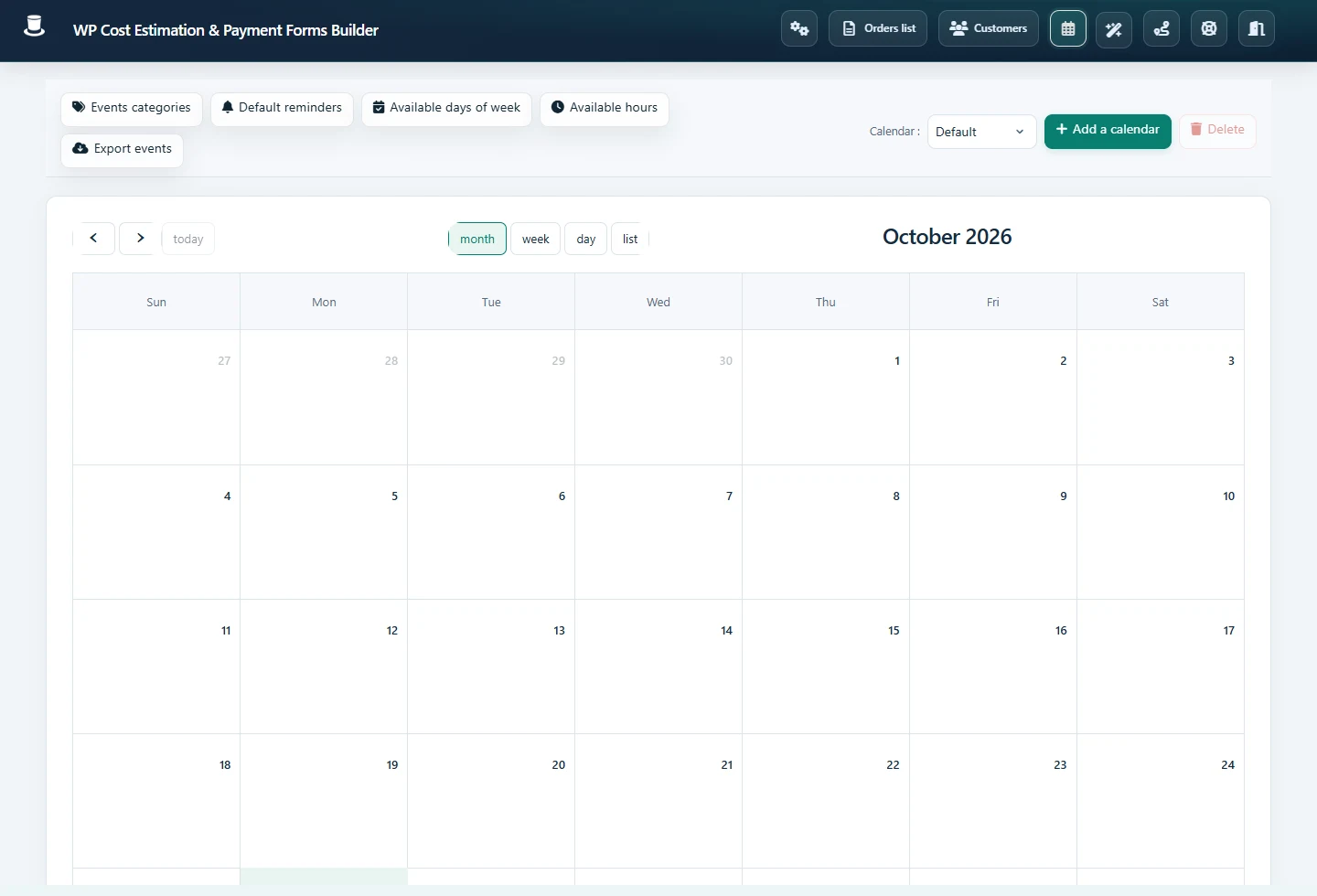
Open the calendars management panel by clicking the calendar icon in the main toolbar:

Calendar Management Panel

View the scheduled events across different calendars in the calendar panel. The calendar view provides a comprehensive overview of all events, allowing you to manage your bookings efficiently.

Calendar Panel Toolbar Features
Events Categories

Categorize events for easy identification in the calendar view with custom colors. This helps you visually distinguish between different types of bookings.

Default Reminders

Set up automatic email reminders to be sent before an event starts. You can configure the timing and content of these reminders to ensure clients don't miss their appointments.

Available Days of Week

Specify which days are selectable for date pickers linked to a calendar. This allows you to restrict bookings to specific days of the week (e.g., Monday to Friday only).

Available Hours

Define selectable hours for time pickers associated with a calendar. This lets you set business hours or specific time slots when bookings can be made.

Calendar Management

Additional calendar management options include:

  • Export Events: Export calendar events as a CSV file
  • Calendar: Switch between your created calendars
  • Add a Calendar: Create new calendars for your forms
  • Delete: Remove a selected calendar

Managing Events

Create a new event by clicking on an empty slot in the calendar, or edit by clicking on an existing event:

The sidebar panel provides details about the selected event, including options like 'Full day' and 'Busy date'. You can set:

Event Details
  • Event title and description
  • Start and end times
  • Event category
  • Associated customer information
Event Options
  • Full day events
  • Busy date (blocks the time slot)
  • Custom reminders for specific events
  • Recurring event settings

Assigning a Calendar to a Date Picker

Assign a calendar to a form's date picker via the "Calendar" dropdown within its settings:

Date Picker Calendar Assignment

Once linked, the date picker will respect the calendar's disabled days and hours. Additional options include:

Event Registration

Enable automatic event creation when a form is submitted. This creates a new event in the calendar based on the selected date and time.

Category Selection

Choose which event category to use for automatically created events. This helps organize your calendar by service type or other criteria.

Event Duration

Define how long the automatically created events should last. You can set a fixed duration or calculate it based on form inputs.

Keep moving

Useful next steps from documentation