
Loading...

Your privacy choices

Google Analytics 4 measures site visits and Google Ads measures advertising clicks and checkout completions, only for the purposes you accept. Neither is required to buy. Necessary checkout services remain available.

Your privacy choices

Google Analytics 4 measures site visits and Google Ads measures advertising clicks and checkout completions, only for the purposes you accept. Neither is required to buy. Necessary checkout services remain available.

These optional Google services may set audience or advertising cookies after your acceptance. Analytics and advertising are separate choices. Acceptance and refusal are remembered in this browser for a fixed 180 days, without extending the period when read. You can withdraw or change your choices at any time using Privacy choices in the footer. Withdrawal removes optional first-party Google cookies and reloads the page if Google has already loaded (using session storage in this tab if persistent storage refuses the withdrawal; a blank page opens only if both stores cannot safely record the withdrawal and a stale approval remains). Checkout, external demos, videos, support and newsletter services have their own privacy information.

Get started

Create your first WordPress quote form

Build a simple cost estimation form, add priced choices and contact fields, check the total, and publish it with a WordPress shortcode.

Updated v10.6.772 min read
On this page
Where to find it

WordPress → E&P Forms → Forms

Before you start

Install and activate the plugin. Prepare one service, two options and the email address that should receive requests. Start with a quote-only form so you can check the calculation before connecting payment.
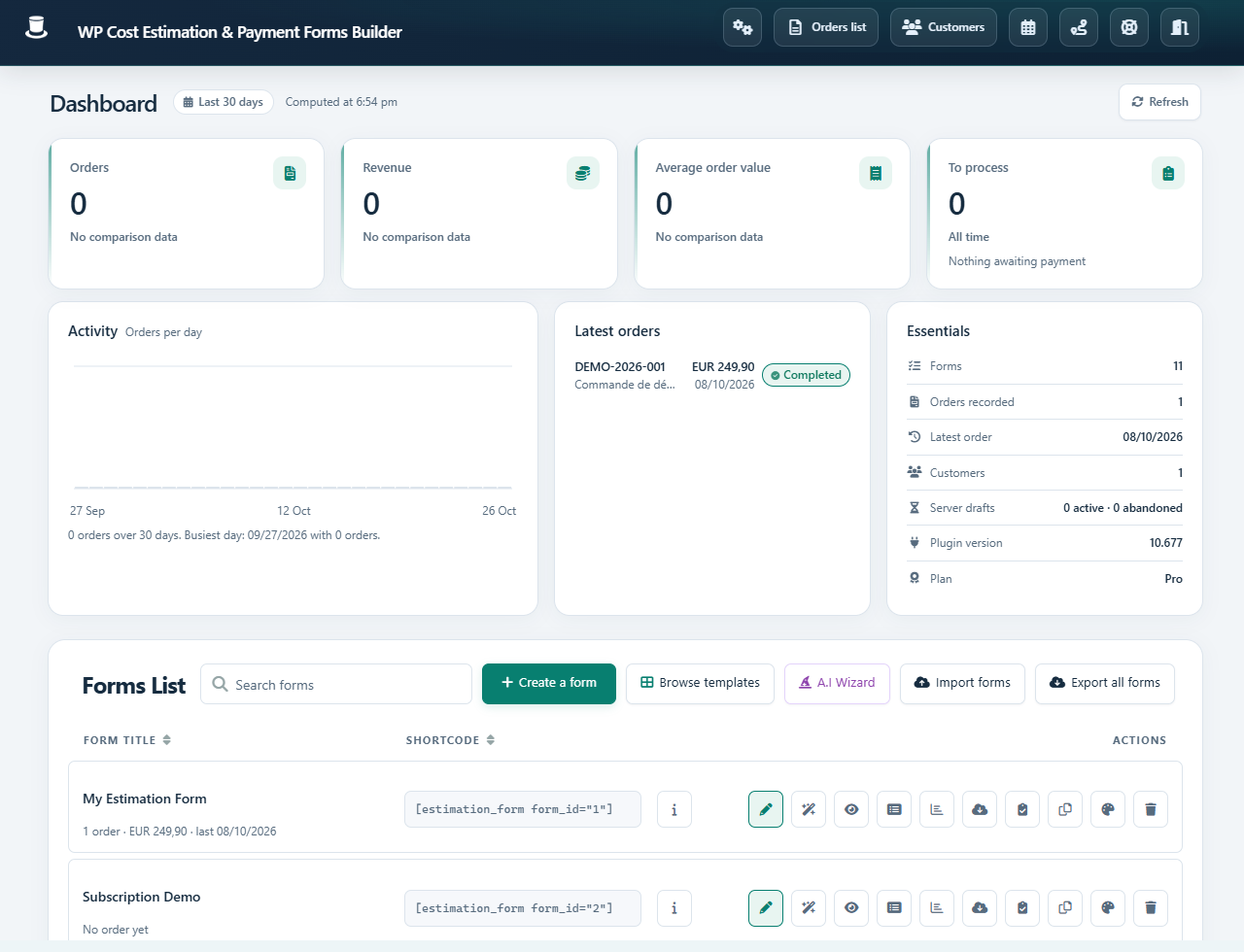
Forms dashboard with the form list and creation, import and export actionsOpen full-size screenshot
Open a form from the list or use its action buttons. Screenshots use the English plugin interface; translated labels can differ.

Step-by-step instructions

  1. Create a form and give it a recognizable name, such as “Website quote”. If you start from a template, review its existing steps and prices before editing.

  2. Create a service step and mark it as the starting step. Add a priced choice for a 500 base package and an optional 100 add-on. Put mutually exclusive choices in the same radio group.

  3. Connect any additional steps in the Steps manager. Open the Last step and add the contact fields you need. Set the email field’s Type of information to Email and make it required.

  4. In Form settings, choose the currency, review Summary and Email, and enter the administrator recipient. Save your changes, then use Preview.

  5. Select the base package: expect 500. Add the option: expect 600. Go back, remove it and check that the total returns to 500. Submit using your own test address.

  6. Copy the form’s Shortcode into a WordPress Shortcode block. Publish the page and repeat the test while logged out and on a phone.

Check the result

The visitor can reach the final step, the total matches the choices, the submission appears in Orders and the intended email arrives. A saved submission alone does not prove email delivery or payment.

If it does not work

If Next does nothing, inspect required fields and step links. If the total is wrong, test each priced item separately. If no email arrives, use the email and SMTP guide.