
Edit a form → Form settings → Payment
Before you start
Use the supported gateway account and credentials for your edition. Test on an HTTPS site reachable by the provider. First confirm that the quote calculation is correct without taking a live payment.
 Open full-size screenshot
Step-by-step instructions
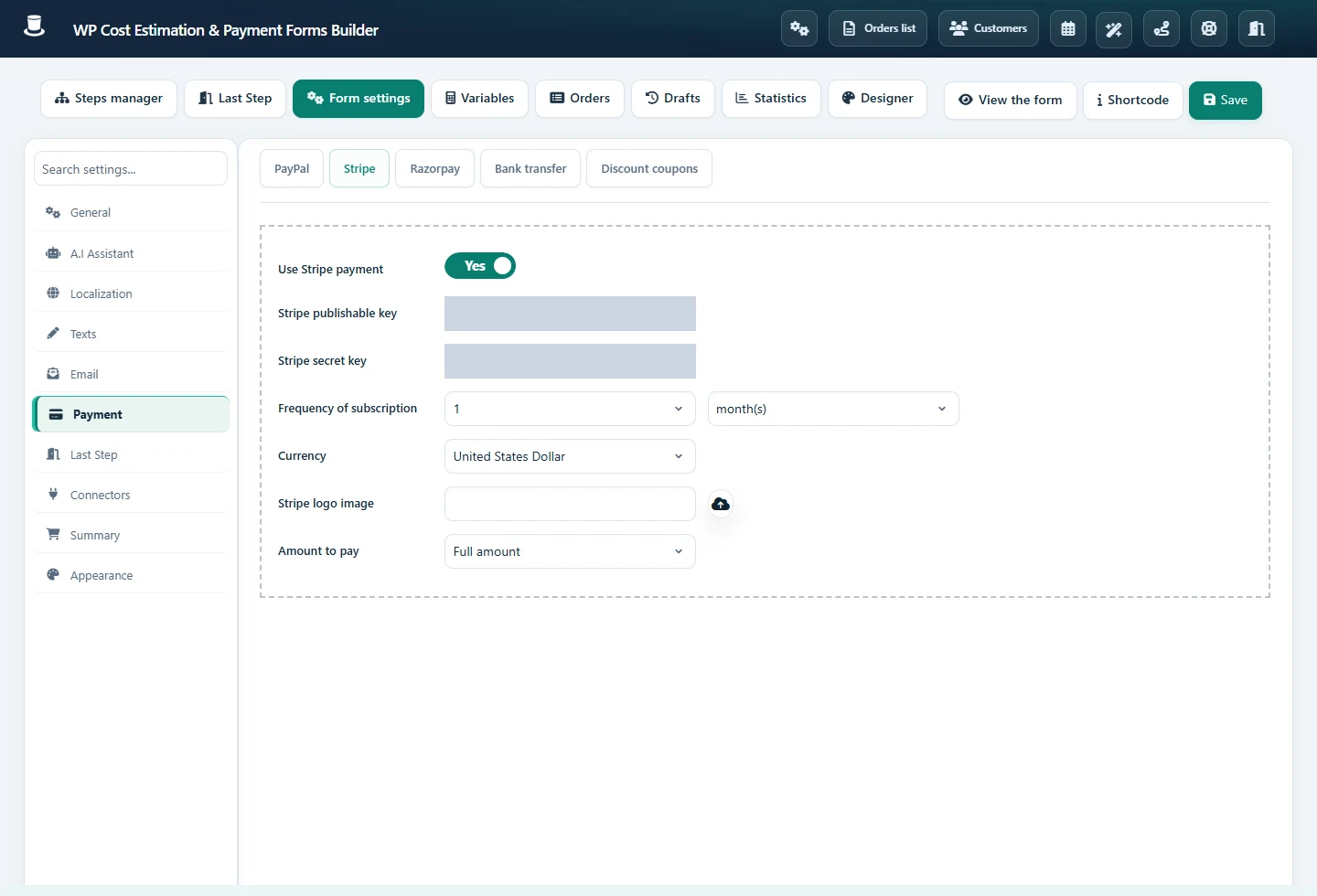
Open Payment and enable the intended gateway. For Stripe, enter the publishable and secret keys from the same test account/mode. For Razorpay, use its own Key ID and secret, never Stripe keys.
For PayPal, enter the account details and review IPN/payment-verification options. Follow the callback URL displayed by your installation when IPN is enabled.
Choose full payment, a percentage or a fixed amount where available. Configure the payment amount in the gateway settings; a deposit row in Summary is a presentation setting and must agree with it.
For recurring billing, enable Use subscription and set the frequency. Review each priced component’s Price mode so one-time and subscription amounts are assigned intentionally. Check the gateway’s supported subscription configuration.
Run successful, failed and cancelled transactions in the provider’s test mode. Check the gateway dashboard and the plugin order before switching to live credentials.
Review a quote before requesting payment
In Last Step → General options, Where does the payment take place? chooses payment at the end of the form or from an email link. Enable Require admin approval before payment when a human must review the request first. This creates an unpaid order; open it in Orders and use Send payment link after reviewing the amount and recipient.
Accept a bank transfer
Open Payment → Bank transfer and enable Use Bank transfer payment. Enter the payment label, instructions, account holder, bank, IBAN and BIC/SWIFT. The payment reference accepts [ref] for the generated order reference. Check that the customer sees the instructions and receives them in the order email.
Selecting bank transfer confirms the order, not receipt of funds. Reconcile the reference and amount with the bank transaction before treating it as paid.
Example: a 30% deposit
For a quote total of 1,000, a 30% payment should charge 300. Show the customer both the full total and the amount due now. The remaining 700 is not automatically collected merely because a deposit was displayed; establish the balance-collection workflow separately.
Check the result
Compare currency, amount and payment status in the provider dashboard with the order. An email, success screen or stored quote alone is not proof of a settled transaction. Verify the recurring schedule separately from an initial charge.
If it does not work
Check mixed test/live keys, HTTPS, currency and provider errors. For missing confirmation, inspect the configured callback/IPN and server logs. Use WooCommerce checkout settings if payment is handled after a cart handoff.