
Forms list → row action Export this form; destination → Import forms
Before you start
Update both installations to compatible versions and back up the destination site. A single-form import adds a form with new IDs; a full import replaces existing form data and is not a merge.
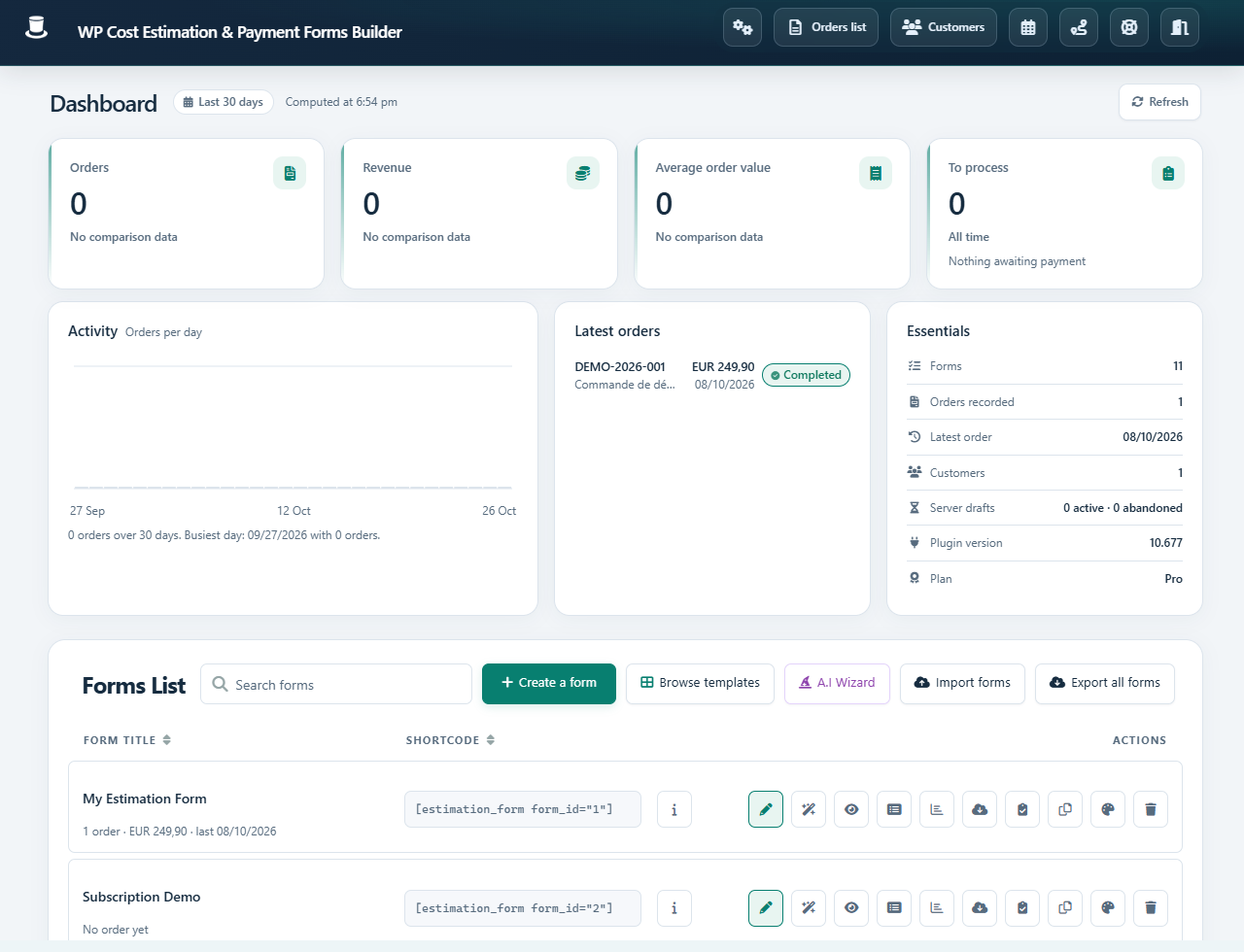 Open full-size screenshot
Step-by-step instructions
On the source site, use Export this form on the desired row. Save the ZIP with a recognizable name and date. Do not choose Export all forms for a single-form transfer.
On the destination, open Import forms and upload that ZIP. Wait for completion before navigating away.
Find the imported form and copy its new shortcode. The import remaps form, step, item and variable IDs; old page shortcodes do not automatically point to the new form.
Review images, rules, formulas and links, then all site-specific settings: email recipients, payment credentials, webhook URLs, Maps keys, calendars and WooCommerce products.
Check the result
Existing destination forms remain after a single-form import. Test the imported form from start to finish, including expected totals and delivery in test mode. Store exports privately because they may contain configuration data.
If it does not work
If the wrong import scope is selected, stop before importing. For a failed ZIP import, verify the original archive, upload limits and plugin versions. Restore the site backup if a full import replaced data you intended to keep.