
Loading...

Your privacy choices

Google Analytics 4 measures site visits and Google Ads measures advertising clicks and checkout completions, only for the purposes you accept. Neither is required to buy. Necessary checkout services remain available.

Your privacy choices

Google Analytics 4 measures site visits and Google Ads measures advertising clicks and checkout completions, only for the purposes you accept. Neither is required to buy. Necessary checkout services remain available.

These optional Google services may set audience or advertising cookies after your acceptance. Analytics and advertising are separate choices. Acceptance and refusal are remembered in this browser for a fixed 180 days, without extending the period when read. You can withdraw or change your choices at any time using Privacy choices in the footer. Withdrawal removes optional first-party Google cookies and reloads the page if Google has already loaded (using session storage in this tab if persistent storage refuses the withdrawal; a blank page opens only if both stores cannot safely record the withdrawal and a stale approval remains). Checkout, external demos, videos, support and newsletter services have their own privacy information.

Publish & connect

Send quote emails and create PDF summaries

Configure administrator and customer emails, insert dynamic values, customize PDF summaries and diagnose delivery with SMTP.

Updated v10.6.772 min read
On this page
Where to find it

Form settings → Email / Summary / Final step; Global settings → SMTP

Before you start

Use your own test inbox and an email field whose Type of information is Email. Distinguish the administrator recipient, the customer recipient and the sender account.
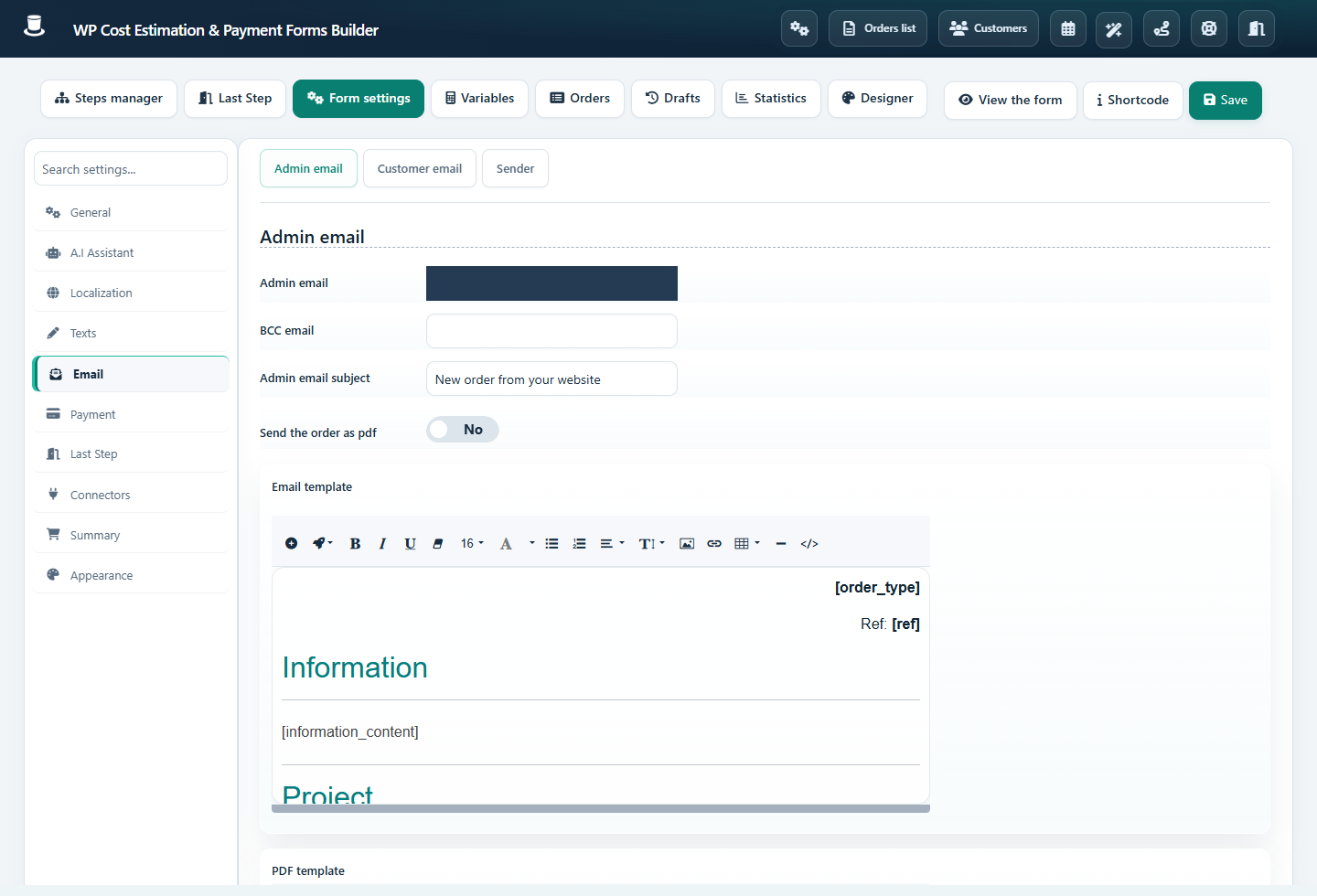
Administrator email and PDF template editor with recipient maskedOpen full-size screenshot
Administrator and customer emails are configured separately; keep the template tokens you need. Screenshots use the English plugin interface; translated labels can differ.

Step-by-step instructions

  1. In Email, enter the administrator recipient; separate multiple addresses as indicated by the option. Enable the customer message when needed and review its subject.

  2. Edit the administrator and customer bodies separately. Use Add a dynamic value for fields and variables, and Add a shortcode for predefined totals or summary elements.

  3. Configure Summary and the available PDF options. Review the PDF template, any email attachment option and Download order as PDF according to the delivery you want.

  4. If using the plugin’s SMTP, open Global settings → Use SMTP to send emails. Enter host, port, username, password and mode from your mail provider, save and use Test SMTP.

  5. Submit a complete test form. Open both received messages and the PDF; check accents, long labels, quantities, taxes, totals and links.

Check the result

The saved order, delivered emails and PDF agree. A successful SMTP test checks the mail connection, while an actual form submission also checks recipients and dynamic content.

If it does not work

For missing mail, inspect spam folders, sender-domain authentication and mail/server logs. For an empty customer recipient, check the field’s information type. If the form reports email_delivery, diagnose that stage before repeating submissions to avoid duplicate records.