
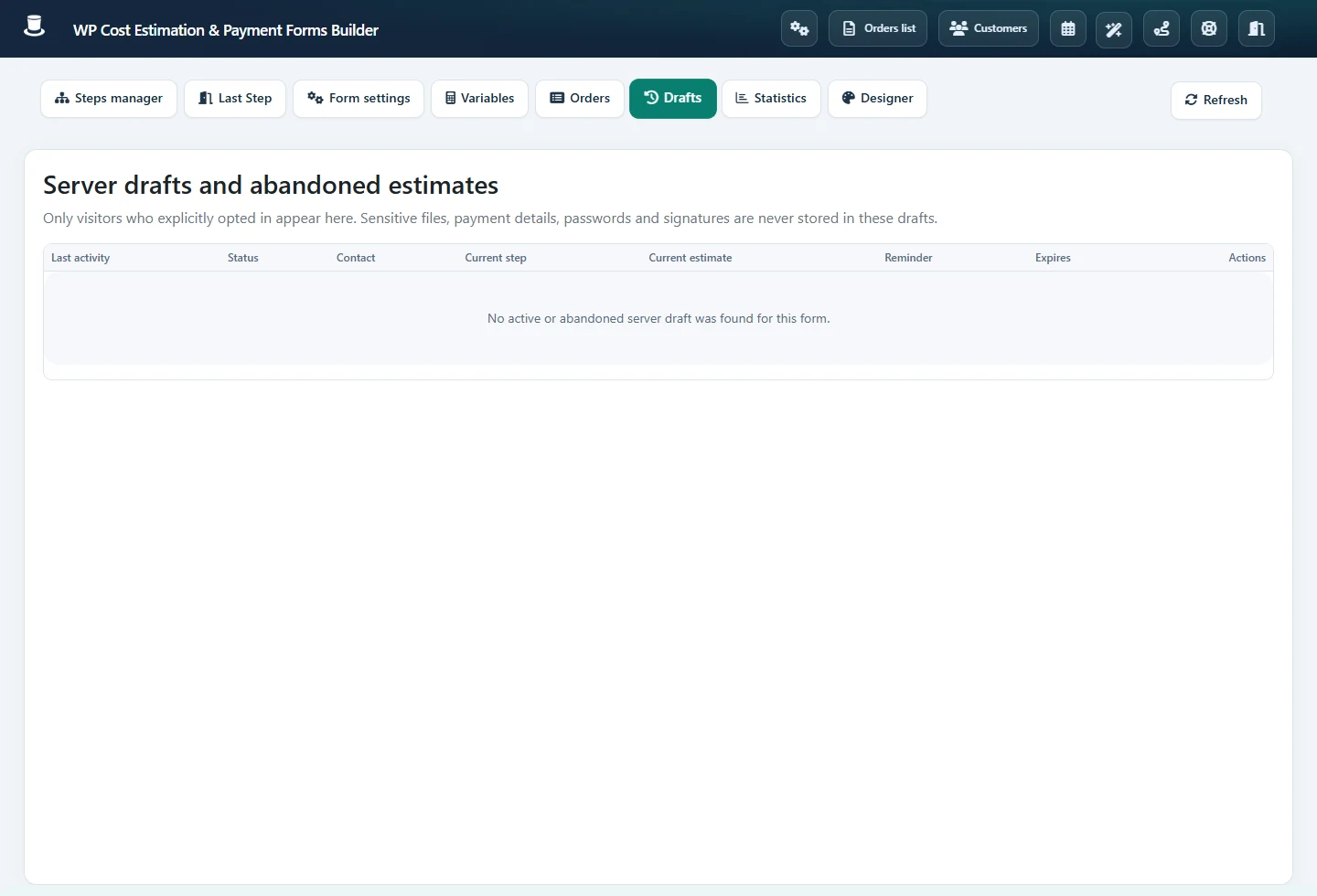
Form settings → General → Server drafts and abandoned estimate recovery; form toolbar → Drafts
Before you start
Browser save-for-later uses the visitor’s local storage and depends on that browser. Server drafts are a separate opt-in feature, require order storage to be enabled, and use an expiring private resume link.
 Open full-size screenshot
Step-by-step instructions
Enable the save-for-later button if you want local browser saving. Enable Server drafts and abandoned estimate recovery separately for server-side continuation.
Write the Recovery consent text so visitors understand storage and reminders. Set retention in days and the inactivity threshold that marks a draft as abandoned.
If wanted, enable Send one recovery email automatically, choose its delay and edit its subject/content. Preserve the resume-link placeholder provided by the editor.
Using a test address, opt in on the public form and leave it incomplete. Open Drafts to inspect status and expiry. Test the resume link in another browser and finish the form.
Check the result
No server draft should be created without opt-in. Check restoration of permitted answers, expiry, consent withdrawal and cleanup after submission. Files, passwords, payment details and signatures are excluded; visitors may need to provide them again.
If it does not work
Check consent, an identified email field, order storage, retention and the form’s draft setting. Automatic reminders also depend on WordPress scheduled tasks and working email delivery. An expired or revoked link cannot restore a draft.