Loading...

Your privacy choices

Google Analytics 4 measures site visits and Google Ads measures advertising clicks and checkout completions, only for the purposes you accept. Neither is required to buy. Necessary checkout services remain available.

Your privacy choices

Google Analytics 4 measures site visits and Google Ads measures advertising clicks and checkout completions, only for the purposes you accept. Neither is required to buy. Necessary checkout services remain available.

These optional Google services may set audience or advertising cookies after your acceptance. Analytics and advertising are separate choices. Acceptance and refusal are remembered in this browser for a fixed 180 days, without extending the period when read. You can withdraw or change your choices at any time using Privacy choices in the footer. Withdrawal removes optional first-party Google cookies and reloads the page if Google has already loaded (using session storage in this tab if persistent storage refuses the withdrawal; a blank page opens only if both stores cannot safely record the withdrawal and a stale approval remains). Checkout, external demos, videos, support and newsletter services have their own privacy information.

Complete Documentation

Documentation

Everything you need to know about WP Cost Estimation

Use Variables

Section 15•5 min read

Use dynamic variables in your labels, emails and calculations.

Efficient Custom Variable Management for WP Cost Estimation Forms

Learn how to create and manage custom variables to enhance the functionality and flexibility of your forms.

Managing Custom Variables

Access the Variables panel by clicking the "Variables" button on the form edition panel toolbar:

Variables Panel
Variables Panel

The Variables panel lets you define custom variables for use in your form's calculations and conditions.
Alter a variable upon selecting a specific component by opting for the "Modify a variable" in the "Price & Quantity" section of the component's edit panel.

Creating and Editing Variables

Adding Variables

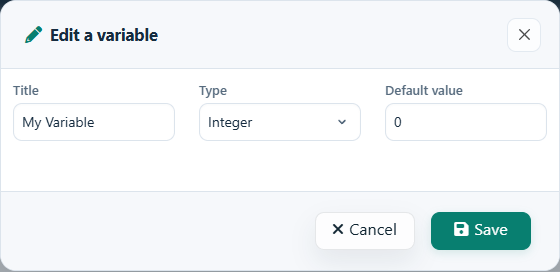
To add a new variable, click "Add a variable." This will open a dialog where you can configure your new variable.

Editing Variables

To modify an existing variable, press the pencil icon next to it. This allows you to change the variable's properties.

Variable Types

Variables come with a title and type, including integer, float, or text. Choose the appropriate type based on what kind of data you need to store.

Integer

Whole numbers without decimal points. Useful for counting items or representing quantities that can't be fractional.

Float

Numbers with decimal points. Ideal for prices, measurements, or any value that might include fractions.

Text

Alphanumeric characters. Perfect for storing names, descriptions, or any textual information.

Using Variables in Components

Variables can be modified by components in your form, allowing for dynamic data storage and manipulation.

Modifying Variables in Components

You can set a component to modify a variable by selecting the "Modify a variable" option in the "Price & Quantity" section of the component's edit panel. This allows you to update variable values based on user input or calculations.

Example: Tracking Selected Options

Create a variable called "selectedOption" and set different components to modify this variable with different values. You can then use this variable in calculations or conditional logic elsewhere in your form.

Displaying Variable Values

Show variable values in "Custom content" sections or emails by using the "Add dynamic value" in the text editor toolbar.

In Custom Content

When editing a "Custom content" component, you can insert variable values using the "Add dynamic value" button in the editor toolbar. This will insert a shortcode that displays the current value of the variable.

Thank you for your order, [variable-1]!
In Email Templates

Similarly, you can include variable values in your email templates to personalize communications with customers.

Dear [variable-1],

Your order has been received. The total cost is [variable-2].

Thank you for your business!

Practical Use Cases

Personalization

Store customer information like name, company, or preferences in variables to personalize the form experience and communications.

Intermediate Calculations

Use variables to store intermediate calculation results that need to be used in multiple places throughout your form.

Conditional Logic

Variables can be used in conditional statements to control the visibility of form elements or to determine pricing based on complex conditions.

Data Aggregation

Collect and aggregate data from multiple form fields into variables for easier processing and display.

Pro Tip: Variables are especially powerful when combined with conditional logic and calculations. For example, you can create a variable that tracks the user's progress through a multi-step form, and use it to show different content or apply different pricing rules based on how far they've progressed.

Keep moving

Useful next steps from documentation