Loading...

Your privacy choices

Google Analytics 4 measures site visits and Google Ads measures advertising clicks and checkout completions, only for the purposes you accept. Neither is required to buy. Necessary checkout services remain available.

Your privacy choices

Google Analytics 4 measures site visits and Google Ads measures advertising clicks and checkout completions, only for the purposes you accept. Neither is required to buy. Necessary checkout services remain available.

These optional Google services may set audience or advertising cookies after your acceptance. Analytics and advertising are separate choices. Acceptance and refusal are remembered in this browser for a fixed 180 days, without extending the period when read. You can withdraw or change your choices at any time using Privacy choices in the footer. Withdrawal removes optional first-party Google cookies and reloads the page if Google has already loaded (using session storage in this tab if persistent storage refuses the withdrawal; a blank page opens only if both stores cannot safely record the withdrawal and a stale approval remains). Checkout, external demos, videos, support and newsletter services have their own privacy information.

Complete Documentation

Documentation

Everything you need to know about WP Cost Estimation

Manage Your Forms

Section 4•5 min read

Create, duplicate, import/export and organize your estimation forms.

Effortlessly Manage Your Forms with WP Cost Estimation & Payment Forms Builder

Accessing Your Forms

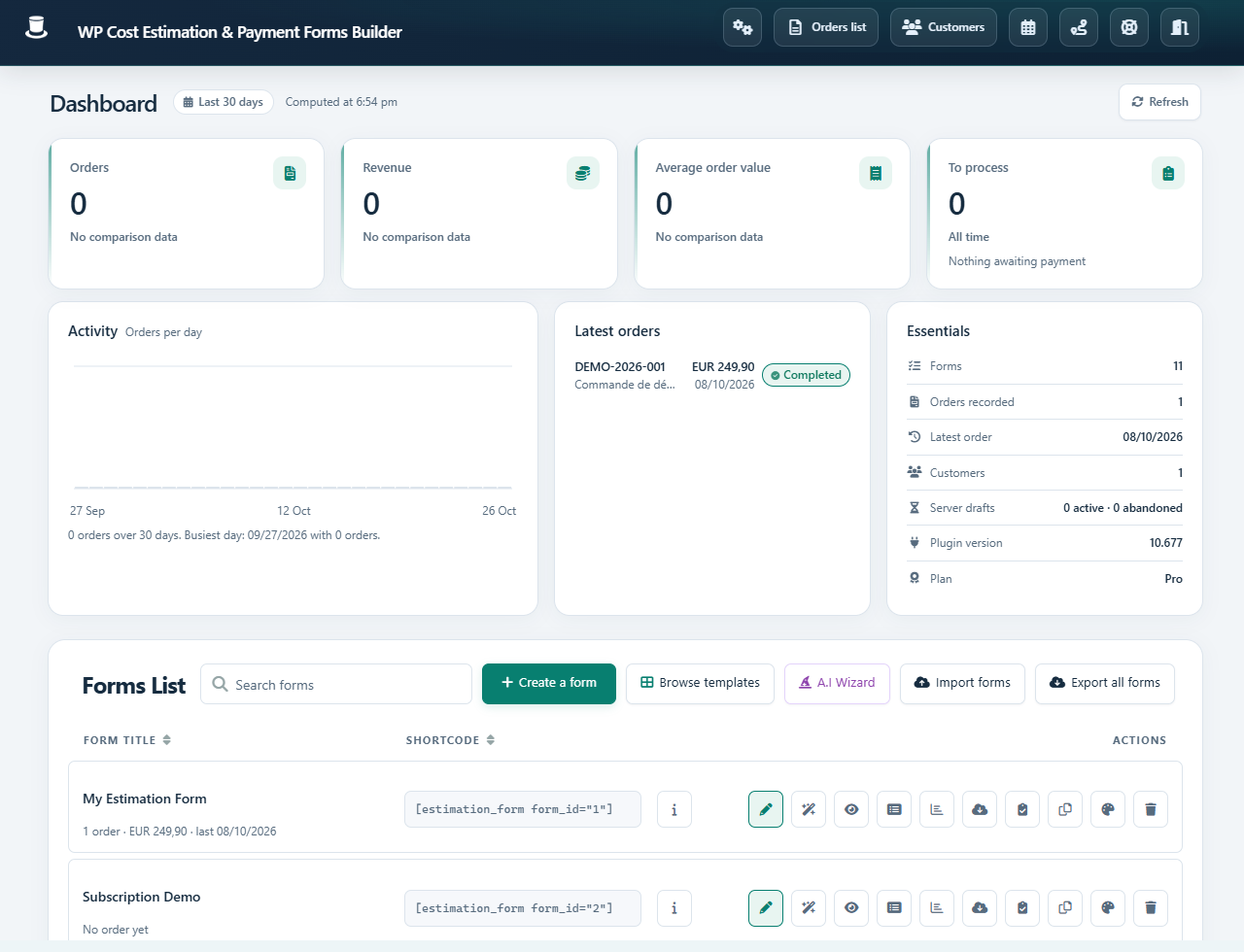
To initiate the process, click on the "E&P Form Builder" link located in the WordPress sidebar to access the Forms List Panel.

Forms List Panel
Forms List Panel

Main Toolbar Overview

Main Toolbar Overview

At the top right corner of the screen, the main plugin toolbar is located. The buttons here correspond to elements that are independent of a specific form:

Backend theme

Opens a window allowing the admin to choose the backend theme of the plugin (flat, dark or custom gradient).

Global settings

Access global settings of the plugin, like customer account page colors & texts, SMTP account, and more.

Orders list

View and edit the orders submitted through your forms.

Customers

View and edit all customer accounts created when an order is submitted.

View calendars

Manage your calendars and the events registered by the date pickers of your forms.

Return to the forms list

Navigate back to the list of forms from any panel of the plugin.

Understanding the Forms List

The Forms List table enumerates all your existing forms. Each form row contains action buttons. Hover over them to see the action name:

Forms List Action Buttons
  • •Edit this form: Edit the corresponding form.
  • •Preview this form: Opens a new tab for form testing.
  • •View orders: View the stored orders of this form.
  • •Statistics: Displays the form statistics (the paid or estimated total amounts along the months & years).
  • •Duplicate this form: Duplicates the entire form with one click, including steps, items, links, variables, prices, and quantity calculations. The new steps and items IDs are automatically updated.
  • •Form designer: Opens the Form Designer tool for visual customization.
  • •Delete this form: Deletes the selected form and its corresponding stored orders.

Form Edition Interface

Upon creating or editing a form, you will be redirected to the Form Edition Page. Here's a breakdown of the interface:

Form Edition Interface

The toolbar is divided into two parts: navigation buttons on the left, and action buttons on the right.

Form Edition Navigation Buttons
  • •Steps manager: Manage the steps process of your form and create link conditions.
  • •Last step: Edit the final static step of the form.
  • •Form settings: Access all the options relative to the current form (features, email, colors, text, currency etc.).
  • •Variables: Create variables for use in calculations and custom content of your form.
  • •Orders: Manage the orders submitted from the current form.
  • •Statistics: View the statistics of the form (the paid or estimated total amounts along the months & years).
  • •Designer: Open the Form Designer tool to customize the visual appearance of the form.

The action buttons on the right change as you navigate to different tool panels using the navigation buttons.

Form Edition Action Buttons

Tip: Familiarize yourself with the interface to efficiently manage your forms. The intuitive layout allows for quick navigation between different aspects of form management.

Keep moving

Useful next steps from documentation